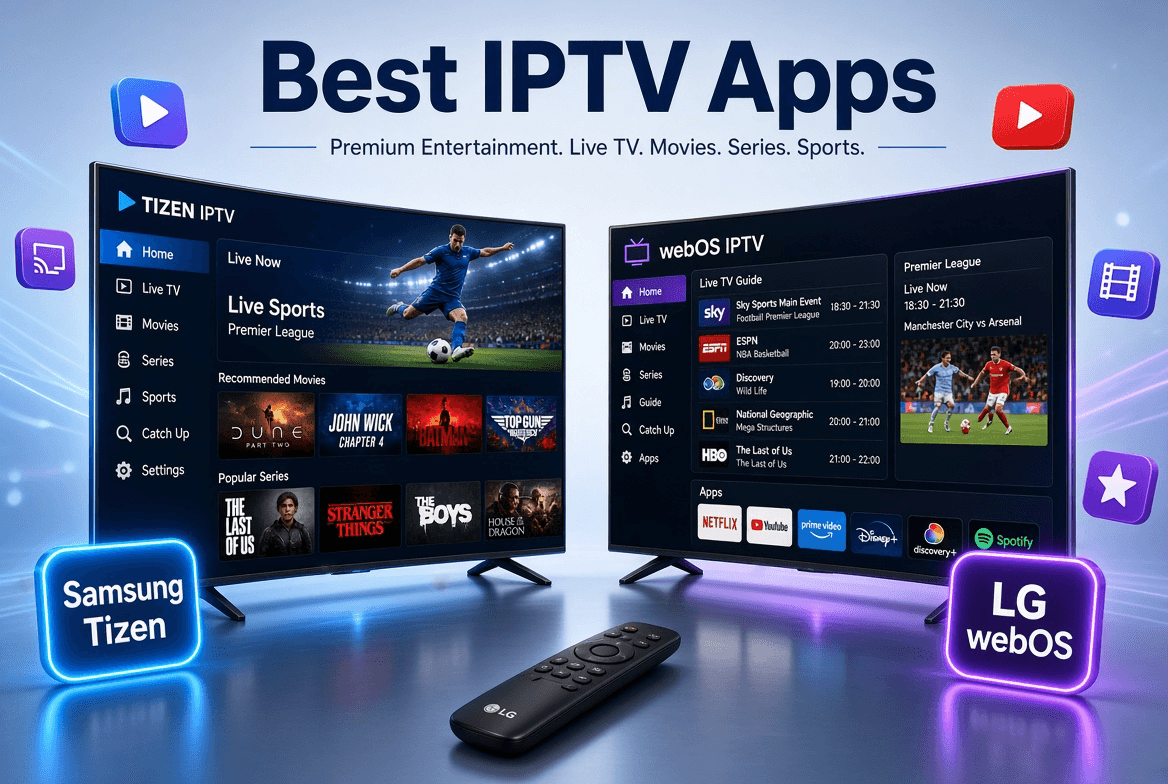
Samsung and LG sell a large share of the smart TVs in homes across North America and Europe, and both can play IPTV with no extra hardware. Samsung runs Tizen and LG runs webOS, so neither can install the Android players you may know from a Firestick. Instead there is a smaller set of TV-specific players, and most of them set up differently from phone apps.
This guide compares the main options, explains how activation and pricing usually work, and walks through setup on both brands. Every app here works with SofaIPTV, and all are third-party players with no channels of their own.
How smart TV IPTV players work
Nearly all of them follow the same pattern:
- Install the app free from the TV’s app store.
- On first launch it shows a MAC address, often with a device key, that identifies your TV.
- On your phone or computer, open the app’s official website, enter the MAC address and add your playlist: Xtream Codes details or an M3U link.
- Restart the app on the TV and your channels appear.
Most include a free trial, commonly around seven days, then ask for a small activation fee: either one payment per TV or a yearly licence, depending on the app. That fee goes to the app developer, not your IPTV provider.
Features worth paying attention to
- Xtream Codes support, so live TV, films, series and the guide load together.
- A proper EPG grid view for browsing what is on.
- Catch-up, for replaying recent programmes on channels that offer it.
- Quick channel changes, ideally within a second or two.
- Favourites and search for large line-ups.
- A PIN lock for categories children should not open.
- Clear pricing: know whether you pay once or every year before activating.
Five apps compared
Store listings change and availability varies by country and TV model year. Search for each app by name in your TV’s store, and check current prices on the developer’s official website.
IBO Player: our top pick
One of the most widely used players on both brands. It handles Xtream Codes and M3U, splits live TV, films and series into separate sections, and includes a guide and catch-up. You add the playlist on the IBO Player website using the MAC address and device key shown in the app; a trial is followed by a licence fee. The best starting point for most owners.
Flix IPTV: most customisable
A modern interface with selectable themes and layouts, Xtream Codes and M3U support, and a guide. Setup is the same MAC-address-and-website routine. Worth trying if another app’s layout does not suit you.
Smart IPTV (SIPTV): for older TVs
One of the oldest TV players, simple and light. It works mainly with M3U links uploaded on its website, and its guide and on-demand features are basic compared with newer apps. Useful on older sets where newer apps are missing, or if you only need live channels.
SET IPTV: dependable but dated
Another long-standing player using a MAC address and website upload. It is straightforward and has a guide, though the interface looks dated next to IBO Player or Flix IPTV.
Duplex Play: manage it from your phone
A clean, modern app whose playlists are managed on its website, handy if you would rather type server details on a phone or computer than with a TV remote. It has the usual live TV, films and series sections.
Setting up on a Samsung TV
- Press Home and open Apps.
- Use the search icon to find the app, for example IBO Player, and select Install.
- Open it and note the MAC address and device key on screen.
- On your phone or computer, go to the app’s official website and open its playlist or device page.
- Enter the MAC address and key, then add your SofaIPTV Xtream Codes details or M3U link.
- Restart the app on the TV; channels, films and the guide load.
Setting up on an LG TV
- Press Home and open the LG Content Store (called Apps on newer models).
- Search for the app by name and select Install.
- Open it and note the MAC address and device key.
- Add your playlist on the app’s official website, as for Samsung.
- Restart the app to load your channels.
The pre-installed Samsung TV Plus and LG Channels are free, ad-supported channel services from the TV makers. They are not IPTV players and cannot load a subscription.
Watch out for activation scams
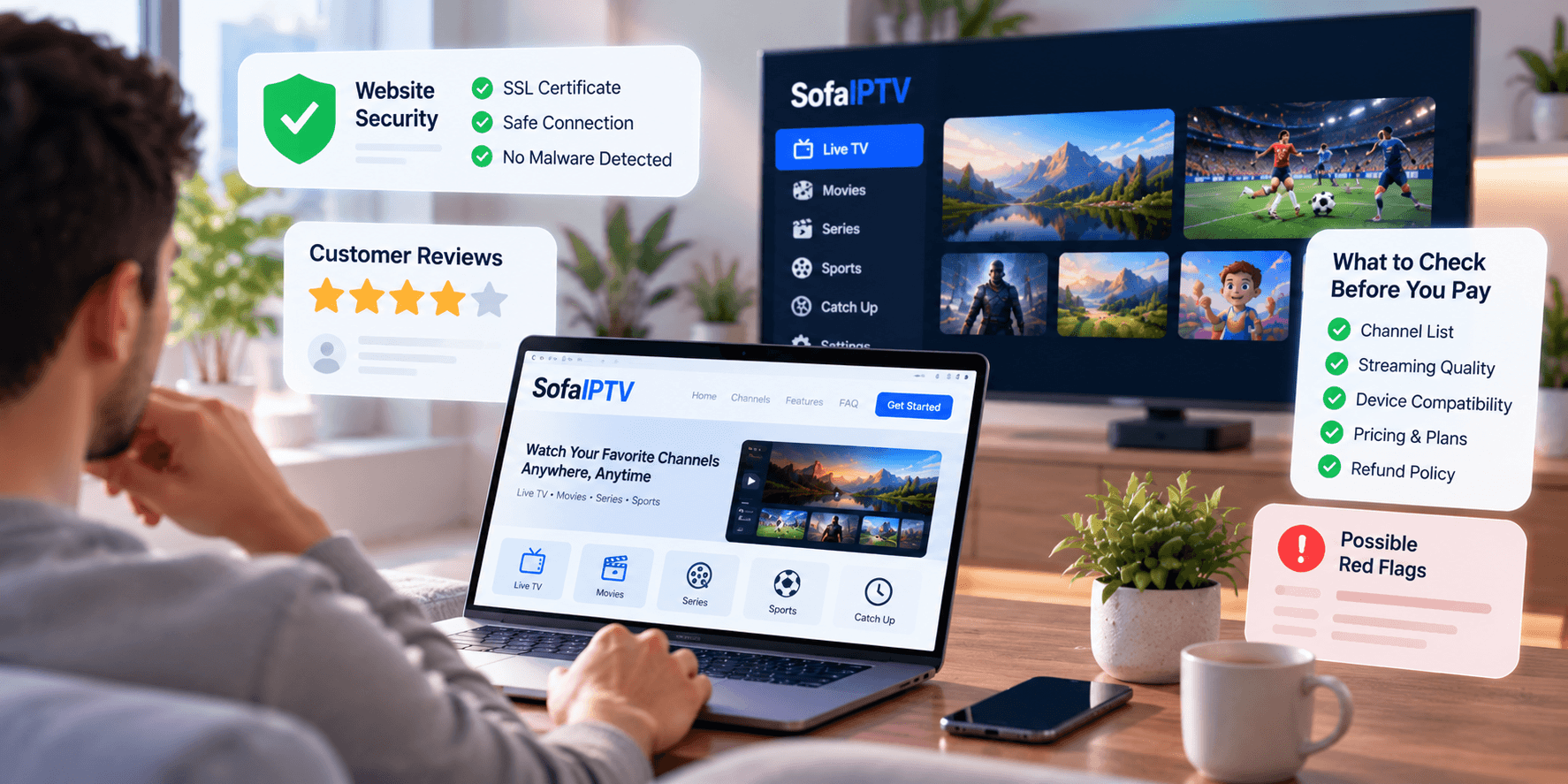
Because activation is paid online, copycat sites imitate popular players. Pay only through the official site linked from inside the app, check the address carefully, and ignore anyone selling “lifetime activation” on social media. If unsure, ask our support team for the correct site.
When a streaming stick makes more sense
TV apps are convenient but limited. Older TVs have slow processors, apps can vanish from the store in some regions, and top Android players such as TiviMate do not exist for Tizen or webOS. If your TV feels sluggish or your preferred app is missing, a Fire TV Stick in a spare HDMI port is an inexpensive upgrade; the Firestick installation guide takes about ten minutes, and our apps and devices page lists players for every screen.
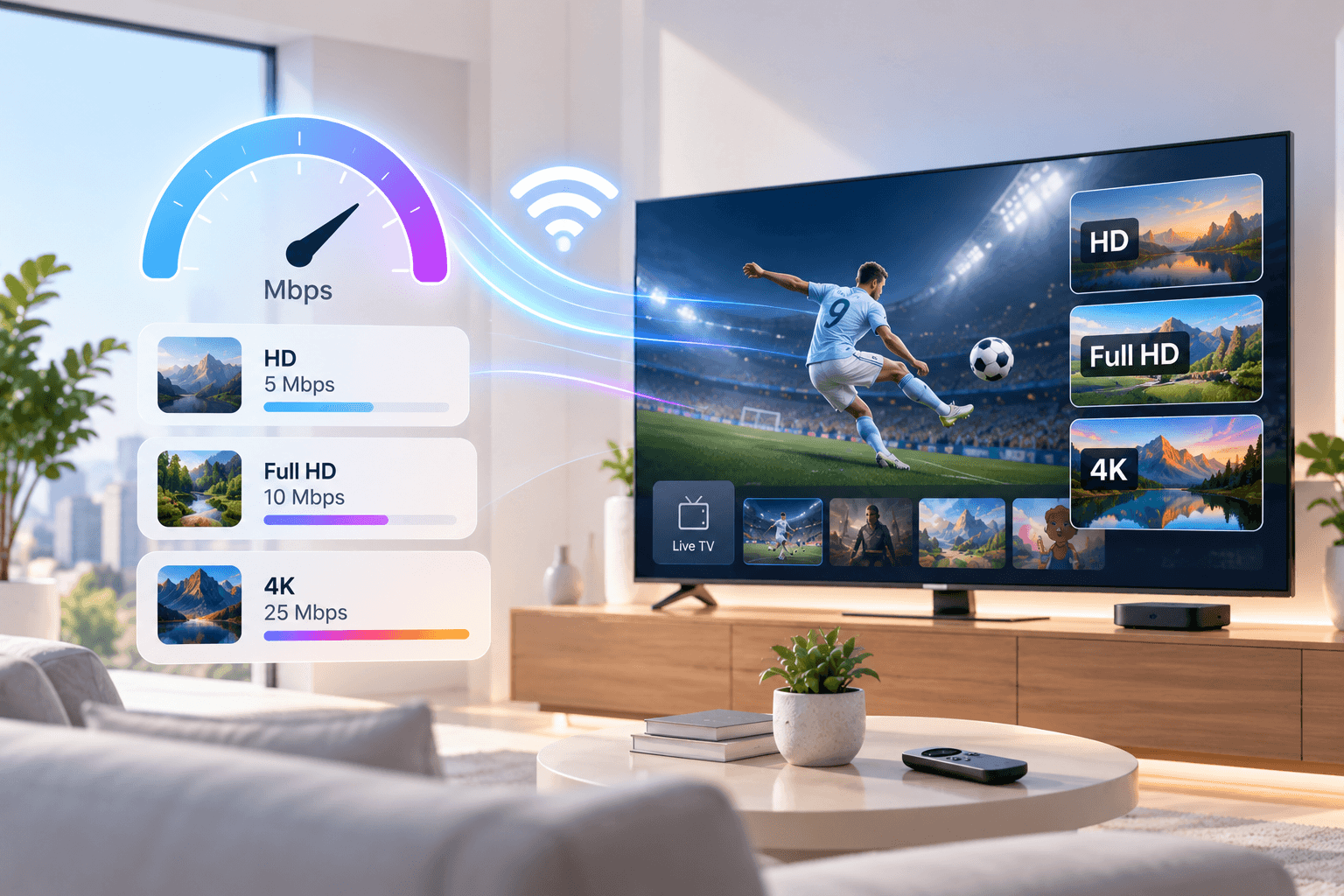
Whatever you use, a stable connection matters more than the app. If streams stutter, start with the IPTV buffering guide.
Summary
Start with IBO Player on most Samsung and LG TVs, try Flix IPTV as an alternative, and keep Smart IPTV or SET IPTV in mind for older sets. Use the app’s trial to check it runs smoothly before paying, and pay only through the official website.
Want to test it with SofaIPTV? Request a free trial, install your chosen app and watch on a busy evening before choosing a plan. If anything goes wrong, contact support with your TV model and app name.
Frequently asked questions
What is the best IPTV app for a Samsung TV?
IBO Player for most Samsung TVs: it supports Xtream Codes, has a full guide and catch-up, and is widely available. Flix IPTV is a good alternative.
Can I install TiviMate on a Samsung or LG TV?
No. TiviMate is an Android app, and Samsung and LG TVs run Tizen and webOS. Plug in a Fire TV Stick or Android TV device if you want TiviMate.
Why do smart TV IPTV apps ask for a MAC address?
It identifies your TV so the app developer knows which device to link your playlist and activation to. You enter it on the app’s website when adding your subscription.
Is the app activation fee paid to my IPTV provider?
No. It goes to the app developer and is separate from your IPTV subscription. Pay it only on the app’s official website.
The app is not in my TV’s store. What now?
Availability depends on your country and TV model year. Try another app from this list, or use a Fire TV Stick, which supports more players.