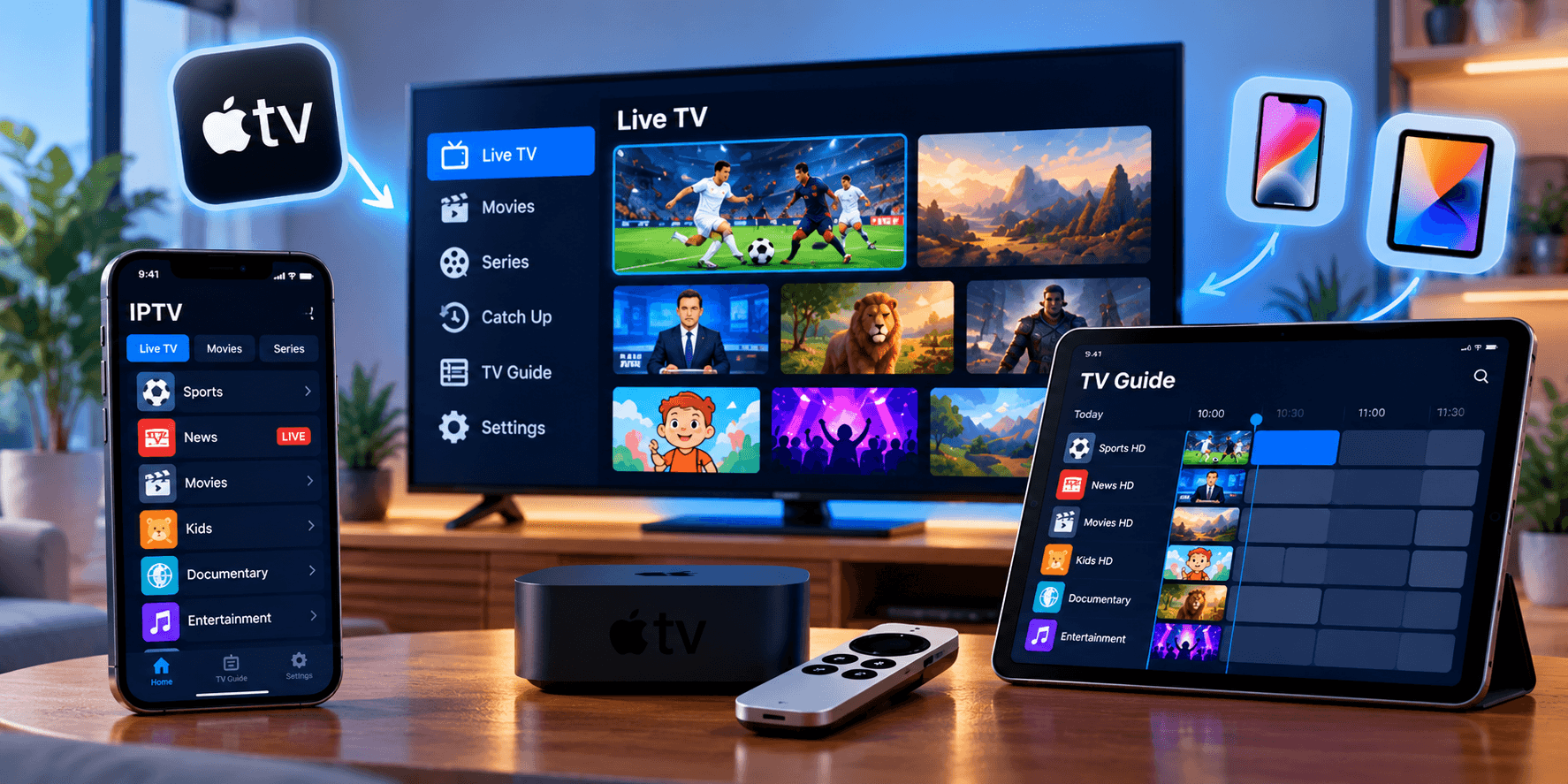
An Apple TV 4K is one of the smoothest boxes you can connect to a television, and an iPhone or iPad is ideal for watching in the kitchen or on the move. The snag is that many IPTV guides recommend TiviMate, which only runs on Android-based devices. Apple owners use a different set of players, and several of them are excellent.
Below: which Apple devices work, what separates a good player from a poor one, our four recommended apps, step-by-step setup, the Apple TV settings that make sport look right, and fixes for common problems. Every app here is a third-party player with no channels of its own; it plays the subscription you add, such as SofaIPTV.
Apple devices that can play IPTV
- Apple TV 4K: the best choice for the living room, fast enough for big channel lists and able to play 4K and HDR.
- Apple TV HD: works, but it is slower and tops out at Full HD. If large line-ups feel sluggish, the 4K model is a worthwhile upgrade.
- iPhone and iPad: any model on a recent version of iOS or iPadOS.
- Mac: most of the players below have Mac versions, and VLC is handy for a quick test.
What makes a good Apple IPTV player
The App Store is full of IPTV players of very mixed quality. The better ones have:
- Xtream Codes support, so live TV, films, series and the guide load automatically.
- A readable guide grid that is easy to move around with the Apple TV remote.
- A proper Apple TV app, not an iPhone app stretched onto the TV.
- iCloud sync, so playlists and favourites follow you between devices.
- Picture-in-picture on iPhone and iPad.
- Honest pricing: most are free to try, then charge a one-off fee or subscription for the full feature set.
Four players worth trying
App names, availability and prices change, so check the developer name on the App Store listing before buying, and try the free tier or trial first.
IPTVX: best for multi-device Apple homes
An Apple-only player with a clean design, a TV guide and both Xtream Codes and M3U support. Its iCloud sync is the stand-out: add the playlist once and favourites and history follow you across Apple TV, iPhone, iPad and Mac.
iPlayTV: best TV-style experience
Built for the Apple TV first rather than adapted from a phone app, with a channel grid, live preview thumbnails and a full guide. It handles Xtream Codes and M3U and is a paid app.
GSE Smart IPTV: best for tinkerers
A long-standing player packed with options: Xtream Codes and M3U, a full guide timeline, parental locks and automatic reconnection when a live stream drops. The interface is busier than newer apps.
Smarters Player Lite: best if you already use Smarters
The Apple edition of IPTV Smarters, with the familiar Live TV, Movies and Series layout and an Xtream Codes login. It runs well on iPhone and iPad, while reviews of the Apple TV version are more mixed. The IPTV Smarters Pro setup guide covers the login steps.
Setting up IPTV on Apple TV
- Open the App Store on the Apple TV and search for your chosen player.
- Confirm the developer name, then select Get or the price.
- Open the app and choose to add a playlist or account.
- Pick Xtream Codes and enter your SofaIPTV server URL (with http:// and the port), username and password.
- Save and give it a minute to load live TV, films, series and the guide.
- Add the channels you watch most to favourites.
Typing a server address with the Siri Remote is slow. When the on-screen keyboard appears, a nearby iPhone usually shows a notification that lets you type there instead. With an iCloud-sync app such as IPTVX, it is even simpler: add the playlist on your iPhone and it appears on the Apple TV.
Setting up IPTV on iPhone and iPad
- Install your chosen player from the App Store.
- Open it and choose to add a playlist or account.
- Select Xtream Codes and paste the server URL, username and password from your welcome message to avoid typos.
- Save, let the channels load and add favourites.
Only have an M3U link? Choose the M3U or playlist URL option and add the separate guide link if asked. The M3U vs Xtream Codes comparison explains why Xtream is the better pick when you have both.
Apple TV settings for smooth sport
Go to Settings › Video and Audio › Match Content and switch on both options:
- Match Frame Rate: the TV follows each channel’s frame rate. North American channels mostly run at 60 frames per second and European channels at 50; without matching, the 50 fps ones judder slightly on fast pans.
- Match Dynamic Range: HDR switches on only for genuine HDR content, so ordinary channels do not look washed out.
If your Apple TV has an Ethernet port, use it: a cable is the most effective cure for evening buffering. The IPTV buffering guide covers other causes, and watching football on IPTV has more match-day tips.
No Apple TV? Use AirPlay
Many recent Samsung, LG, Sony and other smart TVs accept AirPlay. Start a channel in the player on your iPhone or iPad, tap the AirPlay icon and choose the TV. It is fine for occasional viewing, but a native TV app is smoother for everyday use, since the phone stays busy and the stream crosses your Wi-Fi twice. For native options, see the IPTV apps for Samsung and LG TVs.
Fixing common problems
- Login fails: check that the server URL has http:// and the port, check capital letters in the password and remove stray spaces.
- App refuses an http:// server: some Apple apps are stricter about connection security. Try another player from this list, or ask support whether an alternative server address exists.
- Empty guide: refresh the EPG in the app’s settings and wait a few minutes; with M3U, add the guide link yourself.
- Sport looks juddery: turn on Match Frame Rate.
- Apple TV app slow with a big line-up: hide categories you never use, or try a player built specifically for Apple TV.
- Maximum connections reached: another device is already playing on your account; see how multiple connections work.
Summary
You do not need TiviMate on Apple devices. IPTVX is the best all-rounder thanks to iCloud sync, iPlayTV gives the most TV-like Apple TV experience, and GSE Smart IPTV and Smarters Player Lite are solid alternatives. Log in with Xtream Codes, enable Match Frame Rate and use a cable where you can.
Want to see it on your own Apple TV or iPhone? Request a free trial of SofaIPTV, try one of these players on a busy evening and then choose a plan. Stuck? Contact support with your device and app name.
Frequently asked questions
Can I get TiviMate on Apple TV or iPhone?
No. TiviMate only runs on Android TV, Google TV and Fire TV. On Apple devices, use IPTVX, iPlayTV, GSE Smart IPTV or Smarters Player Lite.
Which IPTV app is best for Apple TV?
IPTVX for most people, because it supports Xtream Codes and syncs across your Apple devices through iCloud. iPlayTV is a strong alternative designed specifically for Apple TV.
Do IPTV apps on the App Store cost money?
Most are free to download and try, but many charge a one-off fee or subscription for full features. That fee goes to the app developer and is separate from your IPTV subscription.
Can I watch IPTV on my TV using only an iPhone?
Yes, with AirPlay to a compatible smart TV or an Apple TV. For regular viewing, a native TV app is smoother because it does not rely on your phone.
Why is football juddery on my Apple TV?
Channels at 50 frames per second, common in Europe, judder when the Apple TV outputs 60. Turn on Match Frame Rate under Settings › Video and Audio › Match Content.