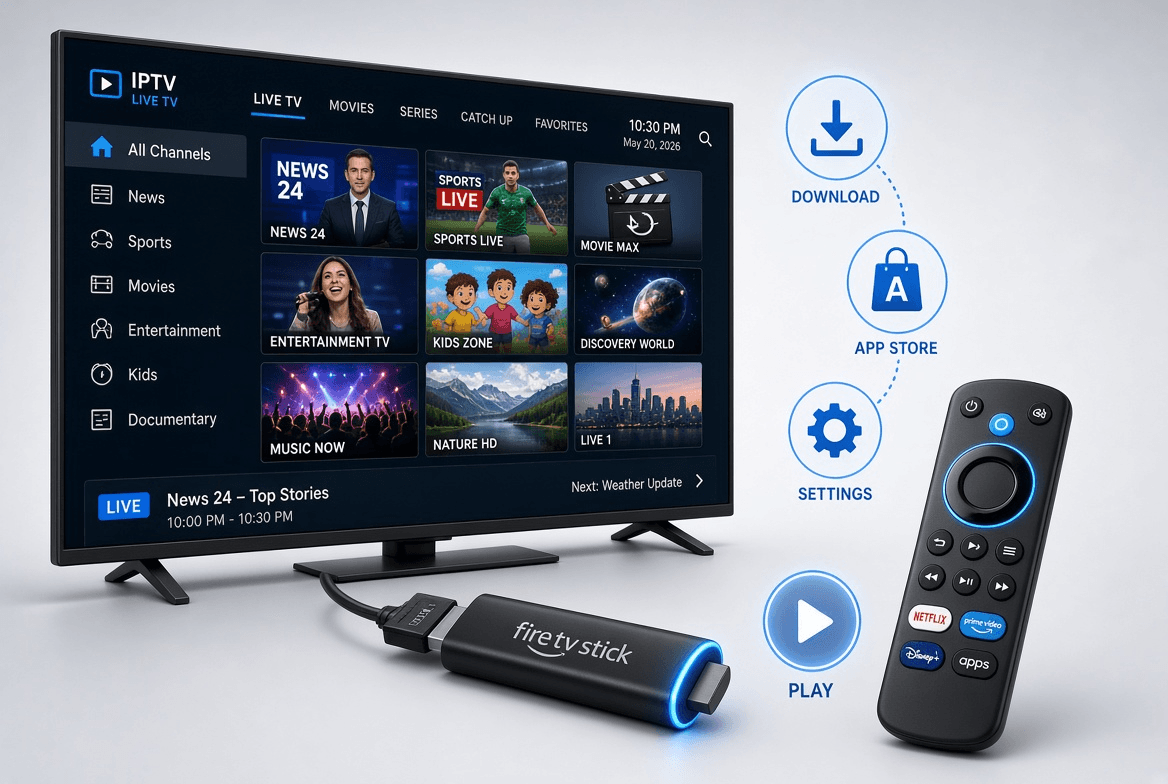
A Fire TV Stick is one of the cheapest and easiest ways to turn any TV with an HDMI port into an IPTV screen. The one hurdle is that most IPTV player apps are not listed in the Amazon Appstore, so the stick has to be told it may install apps from another source first.
This guide covers the whole job, normally about ten minutes, on current Fire TV software in the US, Canada and Europe. It works with SofaIPTV or any other service that gives you an Xtream Codes or M3U login.
The process at a glance
- Check that your Fire TV model can install outside apps.
- Unlock developer options.
- Install the free Downloader app.
- Allow Downloader to install apps.
- Install a player app such as TiviMate or IPTV Smarters Pro.
- Log in with your Xtream Codes details, then tune the stick for playback.
Before you begin
Gather these first:
- A Fire TV Stick (Lite, standard, 4K or 4K Max) or a Fire TV Cube, already connected to your TV and Wi-Fi.
- Your login: username, password and server URL. They arrive in your welcome message after you order or start a free trial.
- Broadband of at least 10 Mbps for Full HD, or around 25 Mbps for 4K.
- The Fire TV remote.
Step 1: Check which operating system your stick runs
Almost every Fire TV Stick runs Fire OS, an Android-based system that can install apps from outside the Appstore. Amazon has begun moving some newer devices to Vega OS, starting with the Fire TV Stick 4K Select, and those can only install Appstore apps.
Open Settings › My Fire TV › About to see your model and software. On a Vega OS device, look for a player in the Appstore for your country, or ask our support team for the best alternative. On Fire OS, carry on.
Step 2: Unlock developer options
The developer menu is hidden by default on current software. Unlocking it is a standard Amazon feature and does not affect your warranty.
- Go to Settings (the gear icon) from the home screen.
- Choose My Fire TV, then About.
- With your device name highlighted at the top (for example Fire TV Stick 4K Max), press the centre select button seven times.
- A message tells you that you are now a developer.
- Go back one screen. Developer Options is now listed under My Fire TV.
Some older sticks show Developer Options without this step. If you can already see it, move on.
Step 3: Install Downloader
Downloader is a free Appstore app that fetches files from a web address. It is the usual way to get player apps onto a Fire TV.
- On the home screen, choose Find, then Search.
- Type Downloader and pick the app with the orange icon, published by AFTVnews.
- Select Get or Download and let it install.
- Open it once and allow file access if prompted.
Step 4: Let Downloader install apps
Fire TV approves outside apps one source at a time, so Downloader needs permission now that it is installed:
- Go to Settings › My Fire TV › Developer Options.
- Open Install unknown apps.
- Switch Downloader to ON.
On older software you will see a single switch named Apps from Unknown Sources instead. Turning it on does the same job.
Step 5: Install a player app
Any player that accepts Xtream Codes or M3U logins will work. These two are the most popular on Fire TV; our apps and devices page lists more options:
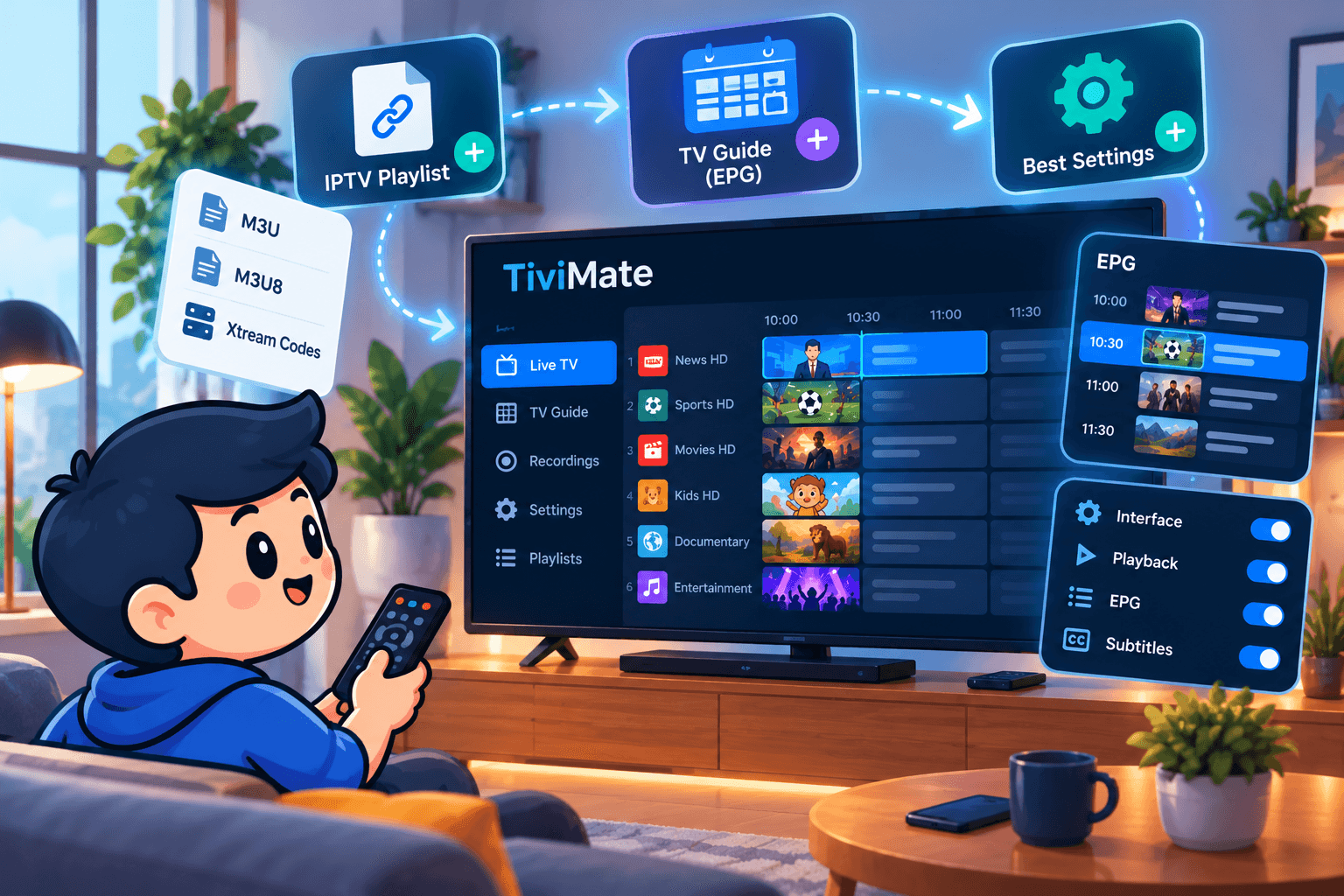
- TiviMate: a cable-style guide with favourites, catch-up and recording. The free version handles the basics; Premium, bought through the TiviMate Companion app on an Android phone, adds features such as multiple playlists and recording. See the TiviMate setup guide.
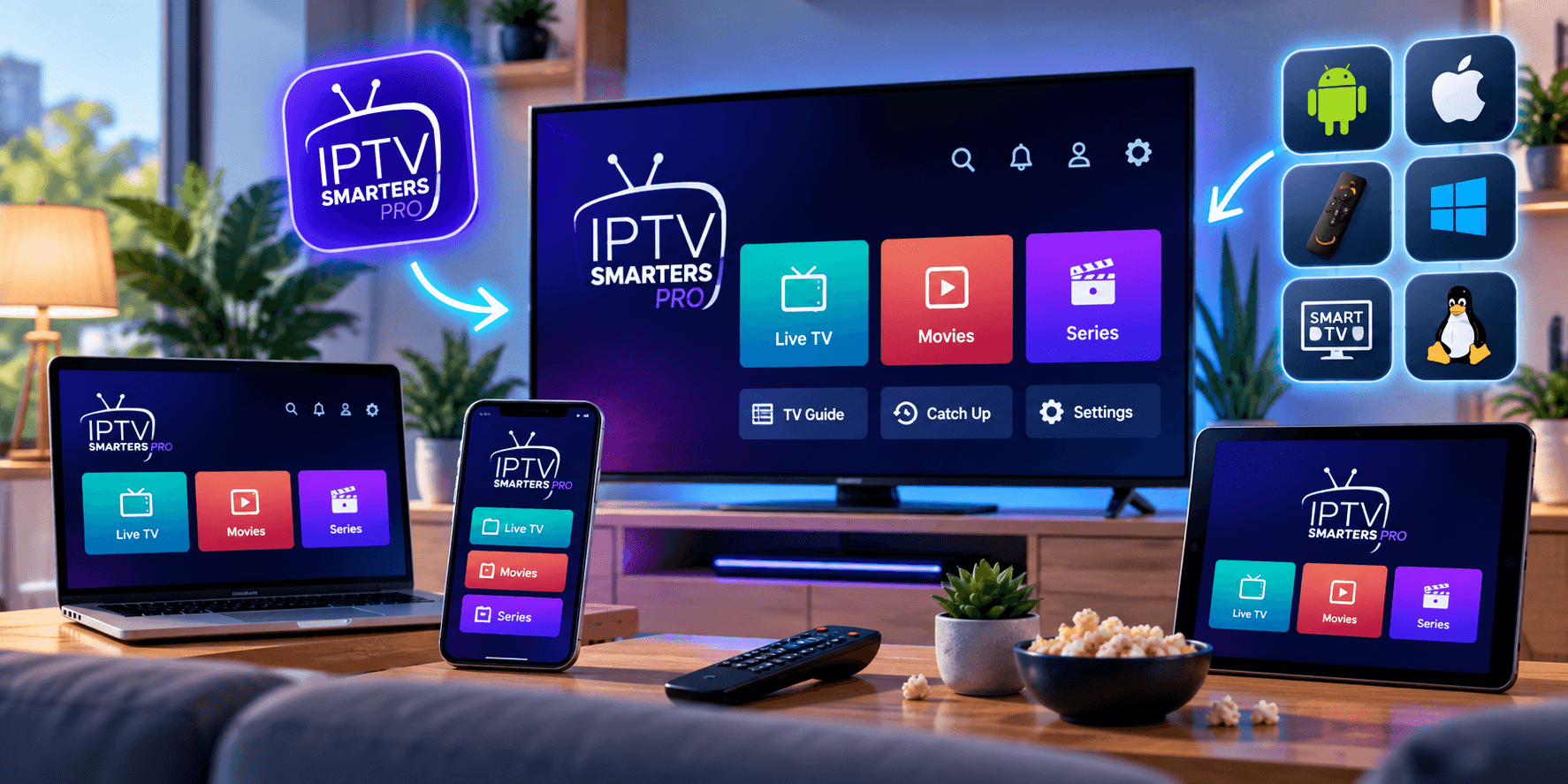
- IPTV Smarters Pro: simple menus with live TV, films and series in separate sections, a sensible pick if you want something uncomplicated. See the IPTV Smarters Pro setup guide.
Search the Amazon Appstore first, because some players are listed there in certain countries. If yours is not, open Downloader, enter the download address from the developer’s official website in the URL field and select Go. When the download finishes, choose Install and then Done, and let Downloader delete the installer file to free up space.
Stick to official developer sites or links from our support team. Modified copies of well-known apps on unknown websites are a common source of malware.
Step 6: Log in
Menus differ slightly between apps, but the login always follows the same pattern:
- Choose to add a user or playlist, then pick Xtream Codes (sometimes labelled Xtream Codes API or Xtream login).
- Give the playlist any name you like, for example SofaIPTV.
- Enter your username and password exactly as written in your welcome message. Both are case-sensitive.
- Enter the server URL, including http:// and any port number after the colon.
- Select Add or Login and wait while the channels, films, series and guide load.
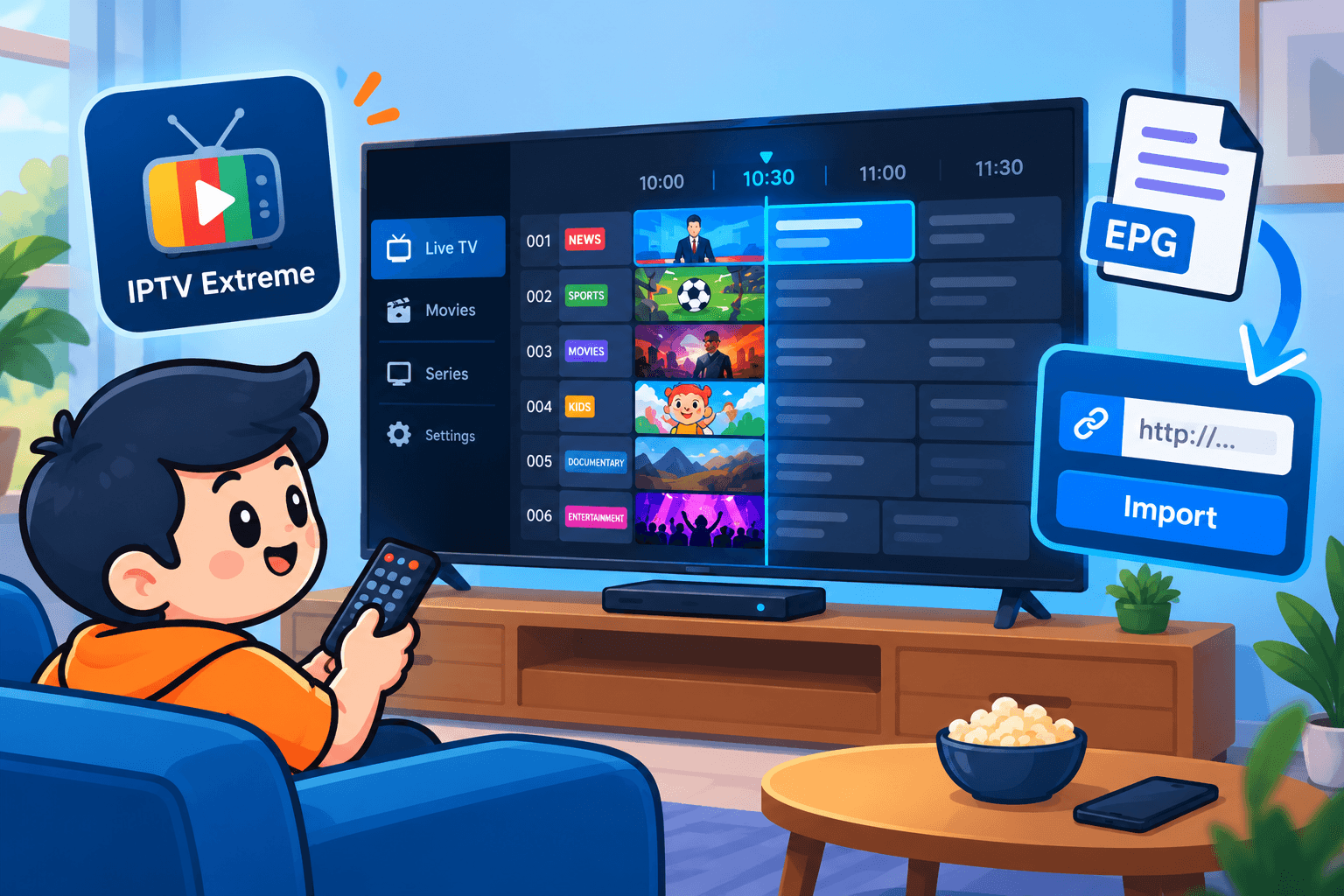
Choose Xtream Codes whenever the app offers it: it brings in the TV guide, catch-up and on-demand library automatically. The M3U link is a fallback for apps without Xtream support, as our M3U vs Xtream Codes comparison explains. If the guide is still blank after login, see how an IPTV EPG works to add it manually.
Set the stick up for smooth playback
Five minutes in the settings pays off, especially for live sport:
- Turn on Match Original Frame Rate under Settings › Display & Sounds › Display. Broadcasts in the US and Canada run at 60 frames per second and most European ones at 50, and matching the source removes judder on fast camera pans.
- Go wired if possible. Amazon’s Ethernet adapter connects through the stick’s power port and sidesteps most Wi-Fi problems.
- On Wi-Fi, join the 5 GHz network rather than 2.4 GHz.
- Clear the player app’s cache from time to time under Settings › Applications › Manage Installed Applications.
- Remove apps you never open. Fire TV Sticks have limited storage and memory, and a full stick slows down.
- Pin your player to the home screen for one-click access.
Big match coming up? Our guide to watching football on IPTV has more match-day tips.
Troubleshooting
Nearly every Firestick setup problem has one of these causes.
I cannot find Developer Options
Press select seven times on the device name itself, the first line of the About screen, without pausing too long between presses. If the menu still does not appear, check whether the stick runs Vega OS, which does not allow outside apps.
The player app refuses to install
Confirm that Downloader is switched on under Install unknown apps. If the install stops part-way, storage is probably full: uninstall unused apps, delete old files in Downloader and try again.
The app says my login is invalid
Re-enter the username, password and server URL slowly, checking capital letters, stray spaces and the port number. Typos cause most failed logins. If everything matches, contact support in case the account still needs activating.
Channels keep buffering
Run a speed test on the stick itself, move to Ethernet or 5 GHz Wi-Fi, and restart both the router and the stick. The IPTV buffering guide works through every fix in order.
Summary
Check your stick runs Fire OS, unlock developer options, install Downloader and allow it to install apps, add a trusted player and log in with Xtream Codes. With a wired connection and frame rate matching switched on, a Fire TV Stick handles anything from films to live football.
Want to try it before you buy? Request a free trial of SofaIPTV, follow these steps and compare our plans once you are happy. Stuck on a step? Message support with your Fire TV model and a photo of the screen.
Frequently asked questions
Is enabling developer options on a Firestick safe?
Yes. It is a standard Amazon setting that allows apps from outside the Appstore. Keep it safe by installing apps only from official developer websites or links from our support team.
Which Firestick model is best for IPTV?
Any current Fire OS model works. The Fire TV Stick 4K and 4K Max have more memory and faster Wi-Fi, which helps with live sport and big channel lists. Check that a model runs Fire OS, not Vega OS, before buying.
Xtream Codes or M3U: which should I use on Firestick?
Xtream Codes, whenever your app supports it. It loads the TV guide, catch-up and on-demand library automatically, while an M3U link usually needs the guide added separately.
Can I put one subscription on several Firesticks?
Yes, install it on as many devices as you like. How many can play at the same moment depends on your plan’s connections, explained in how many IPTV connections you need.
Do I need a VPN on a Firestick?
Not for setup. Some people find a VPN helps if their internet provider slows video traffic at busy times. Test with and without one at the same time of day to see whether it makes a difference.