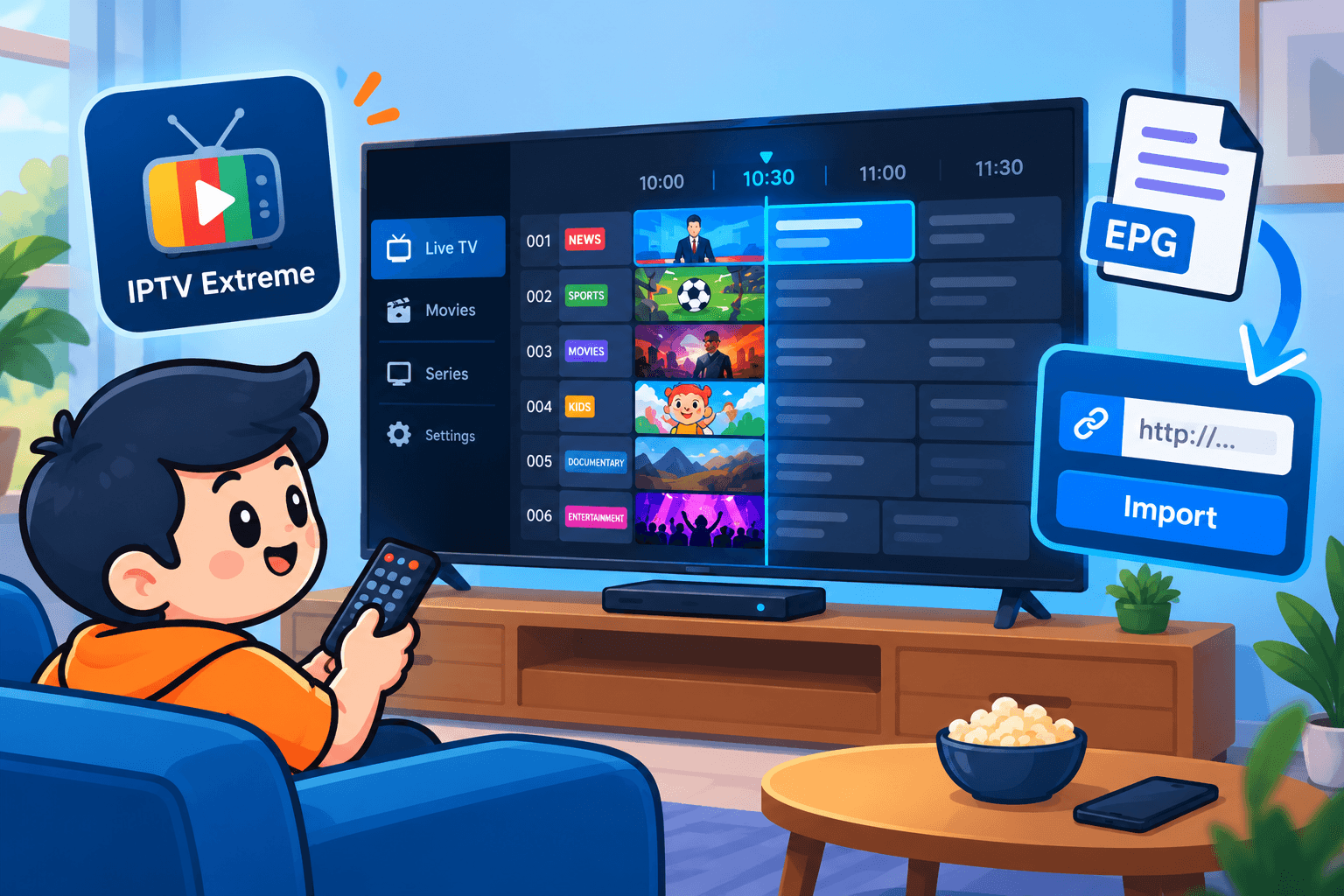
In IPTV Extreme, the TV guide lives in a separate file from your channel list, which is why so many people end up with working channels and an empty grid. Importing the EPG is what adds programme titles, times and descriptions. This walkthrough covers finding the right link, adding it, matching channels and fixing the problems that come up most.
Allow about ten minutes. Your playlist should already play channels; if it does not, fix that first, since a guide is only useful once the streams work. The steps apply to any provider, including SofaIPTV.
Checklist before you begin
- IPTV Extreme or IPTV Extreme Pro on an Android phone, tablet, Android TV box or Fire TV device.
- A working playlist: an M3U link or Xtream Codes details.
- Your EPG link, usually an XMLTV address ending in .xml or .xml.gz.
- A stable connection, as the first full guide download can be several megabytes.
If programme guides are new to you, read how an IPTV EPG works first; the steps below will make more sense.
Step 1: Get your XMLTV link
Providers supply the guide separately from the channel list, normally in the same welcome message. Where to find it depends on your login type.
Xtream Codes users
Xtream-based services generate the guide automatically at a predictable address: your server, then xmltv.php, then your username and password as parameters, for example http://server-address:port/xmltv.php?username=YOUR_USER&password=YOUR_PASS. Swap in your own details exactly as written in your welcome message, including capital letters.
M3U users
Look in your welcome message for a line labelled EPG, XMLTV or Guide URL. Some M3U playlists also carry the guide address in their first line, in a field called url-tvg. If you cannot find it, ask support.
Before adding it to the app, open the link in a computer browser. A file download or a page of structured text means it works; an error usually means a typo, the most common reason a guide fails.
Step 2: Add the guide in IPTV Extreme
Labels shift a little between versions, but every recent release follows this pattern:
- Open IPTV Extreme and go to the main menu or settings.
- Open the EPG section, labelled EPG, EPG Sources or TV Guide in most versions.
- Add a new source and choose URL as the type.
- Paste the XMLTV link and give the source a recognisable name, such as your provider.
- Save, then choose the option to update or download the guide.
The first download can take a minute or two. Let it finish before opening the channel list, or you may see a half-filled guide and think something is broken.
Attach it to the right playlist
Some versions ask which playlist the guide belongs to; others let you enter the EPG link while editing the playlist. With more than one playlist, check the guide is linked to the correct one, or the app looks for listings in the wrong place and every channel appears empty.
Step 3: Check channel matching
Open a few channels and look at the guide. Programme names mean the hard part is done. If most channels say “No information”, the cause is almost always matching.
Each channel in the XMLTV file has an ID, and each playlist channel carries a tvg-id tag. IPTV Extreme pairs them by comparing the two. If they differ, because a channel was renamed or the guide comes from another source, the slot stays empty.
- Use your own provider’s EPG link rather than a generic one; its IDs are built to match your playlist.
- If only a few channels are blank, use manual mapping, where available, to assign the right guide entry.
- Send support the exact names of channels that stay blank so the IDs can be fixed for everyone.
Step 4: Correct the time offset
Listings that appear but sit an hour or more out are being shown in the wrong time zone. XMLTV records an offset for each programme, but a device set to the wrong zone, or a guide published in UTC, can still cause a shift.
- Set the device’s date, time and time zone to automatic.
- In IPTV Extreme’s EPG section, find the time shift or offset setting and adjust it one hour at a time until the guide matches the screen.
- Check again after daylight saving changes. North America switches on the second Sunday in March and the first Sunday in November, the EU on the last Sundays of March and October, so a guide can drift for a few weeks each spring and autumn.
Step 5: Keep it updating
Guides cover a limited window, often a few days ahead. To avoid running dry:
- Turn on automatic EPG updates, ideally once a day or at app start.
- Avoid refreshing several times an hour; large guides take time to process and slow older devices.
- Clear old guide data occasionally if the app gets sluggish.
Troubleshooting
The guide is completely blank
Test the link in a browser, confirm it is attached to the right playlist and run a manual update. If the file is compressed (.gz) and your version struggles with it, ask whether an uncompressed .xml link is available.
Opening the guide freezes the app
Very large guides can overwhelm devices with little memory. Ask for a smaller, region-specific EPG or keep fewer days. Freezing during playback is a different problem, covered in the IPTV buffering guide.
It worked yesterday and is empty today
The guide window has probably run out because automatic updates are off, or the provider’s guide server had a brief outage. Run a manual update; if it fails, wait an hour and retry before contacting support.
Should you add a second EPG source?
IPTV Extreme can hold several sources, and some viewers add one to cover a few international channels. More is not always better: each source adds download time and memory use, and two guides can disagree about the same channel.
If you do add one, keep your provider’s guide as the main source, map only the channels the extra source genuinely improves, and remove it if it has not helped after a week.
Two-minute health check
Run this whenever the guide looks wrong:
- Open a news channel: the current listing should match the screen.
- Scroll two days ahead: listings should still be there.
- Check one channel from each country or category you watch, since gaps often hit a single group.
- Note the last update time in the EPG settings, if your version shows it.
Not on Android?
IPTV Extreme is an Android app. On Samsung or LG TVs, compare the options in IPTV apps for Samsung and LG TVs; on Apple devices, see IPTV on Apple TV, iPhone and iPad. The apps and devices page lists players for every screen.
Summary
A working IPTV Extreme guide needs three things: the right XMLTV link, matching channel IDs and the correct time offset. With those in place, the guide is the fastest way to see what is on. Still stuck? Contact support with a screenshot of your EPG settings.
Frequently asked questions
Which EPG format does IPTV Extreme use?
XMLTV, the standard format for most IPTV providers, as a plain .xml file or a compressed .xml.gz file.
Can I pair a free EPG with a paid playlist?
You can, but the channel IDs often will not match, which leaves gaps. Your provider’s own EPG is almost always more reliable.
How often should IPTV Extreme refresh the EPG?
Once a day suits most people. Guides cover several days ahead, so more frequent updates mostly add load to your device.
Why are the times in my guide wrong?
Usually a time zone mismatch between your device, the guide data and the app. Set your device time to automatic, then use the app’s EPG offset to correct any remaining difference.