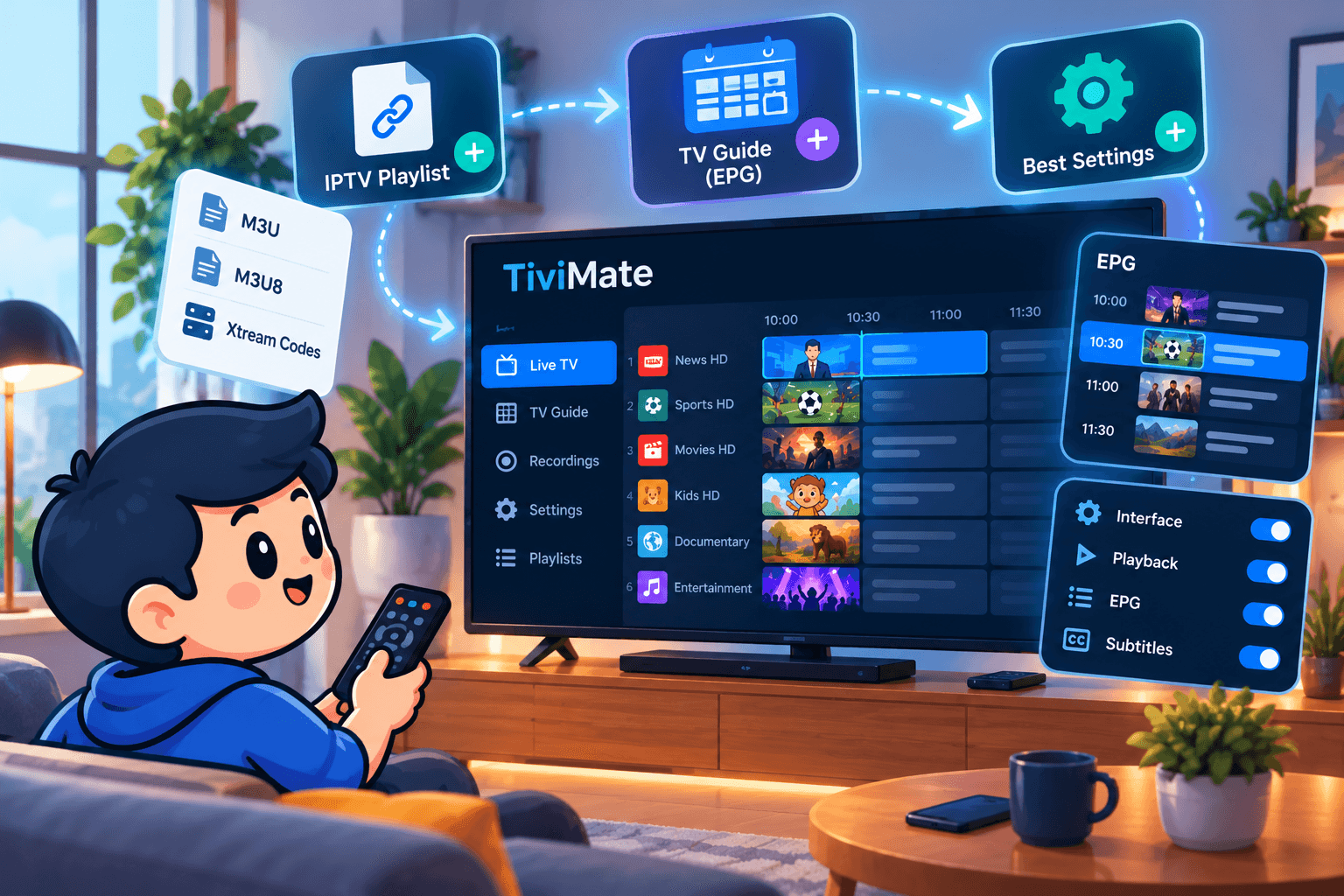
TiviMate is an IPTV player built for the TV and the remote rather than the phone. Its cable-style guide grid, fast channel switching and clean menus are why it is one of the players we suggest most for Fire TV and Android TV.
This guide covers installation, adding your playlist, loading the TV guide, organising channels and the playback settings worth changing. TiviMate comes with no channels of its own; it plays a subscription you add, such as SofaIPTV. Menu names shift slightly between versions, but the steps stay the same.
Will TiviMate run on your TV?
TiviMate is made for Android-based TV devices. It runs on:
- Fire TV Sticks, the Fire TV Cube and Fire TV smart TVs.
- Android TV and Google TV devices, such as Chromecast with Google TV, NVIDIA Shield and many Sony, Philips, TCL and Hisense TVs.
- Android TV boxes on a recent Android TV version.
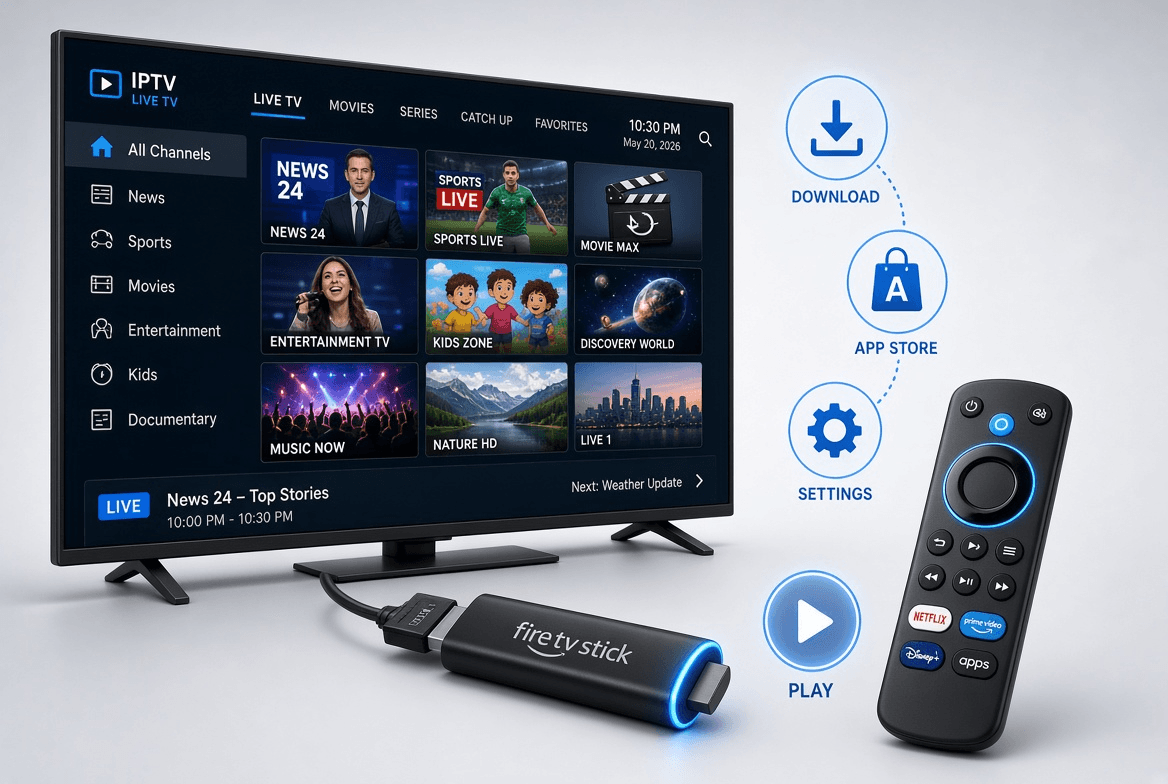
It is not available on Samsung (Tizen) or LG (webOS) TVs, or on iPhone and Apple TV. For those, see the IPTV apps for Samsung and LG TVs, the guide to IPTV on iPhone, iPad and Apple TV or our apps and devices page. A Fire TV Stick in a spare HDMI port is a cheap way to add TiviMate to any TV.
What to have ready
- Your login: an Xtream Codes server URL, username and password, or an M3U link.
- An EPG (TV guide) link, if your provider supplied one.
- A steady connection, ideally Ethernet or 5 GHz Wi-Fi near the router.
Unsure which login to use? The M3U vs Xtream Codes comparison explains it; in short, pick Xtream Codes whenever you can.
Step 1: Install the app
Android TV and Google TV
- Open the Google Play Store on the TV device.
- Search for TiviMate and choose TiviMate IPTV Player.
- Select Install, then Open once it has finished.
Fire TV
In most regions TiviMate is not in the Amazon Appstore, so it goes on through the free Downloader app after you enable developer options and let Downloader install apps. The Firestick installation guide shows each screen. With Downloader ready, enter the address of TiviMate’s official download page or the code your provider recommends, install the app and delete the installer to save space.
Only use the official source. “Cracked” or modified copies shared online are a common route for malware and often stop working without warning.
Step 2: Add your playlist
On first launch, TiviMate asks you to add a playlist.
With Xtream Codes (recommended)
- Choose Add playlist, then Xtream Codes.
- Enter the server URL exactly, including http:// and any port number.
- Enter your username and password, checking capital letters, and select Next.
- TiviMate shows how many channels, films and series it found. Select Next.
- Name the playlist, for example after your provider, and select Done.
With an M3U link
- Choose Add playlist, then Enter URL.
- Type or paste the M3U link. A short link from your provider, or a remote keyboard app on your phone, saves a lot of clicking.
- Select Next, let the channels load, then name the playlist and select Done.
Step 3: Get the TV guide working
With Xtream Codes, the guide normally fills in by itself within a few minutes. With M3U, or if it stays blank, add it manually:
- Open Settings, then EPG.
- Choose Add EPG source and paste your provider’s guide link.
- Go back to the guide and select Update EPG, or wait for the automatic update.
Channels that still say “No information” usually have IDs that do not match the guide data; most gaps close after the first full update. Our explainer on what an EPG is covers why. A daily update is enough for most homes, and the guide follows your device’s time zone, so check that the date and time are set correctly whether you are in Eastern, Pacific or Central European time.
Step 4: Tidy up the channel list
A big line-up is far easier to use once it is organised:
- Favourites: long-press OK on a channel and add it to Favourites so your everyday channels sit in one short list.
- Hide groups: long-press a group you never watch and hide it; fewer groups means faster scrolling.
- Reorder groups: move your most-watched groups, such as local channels or sport, to the top.
- Parental lock: set a PIN in settings and lock groups you do not want children to open.
Step 5: Playback settings worth changing
These make the biggest difference for live sport and 4K. Most live under Settings › Playback.
Buffer size
The buffer is the amount of video TiviMate stores ahead. A larger one rides out short connection dips at the cost of slightly slower channel changes. If you get occasional freezes, raise it one step at a time. If streams still stop, work through the IPTV buffering guide, since the network is usually the cause.
Auto frame rate
Turn on automatic frame-rate matching so the TV follows each channel’s frame rate. North American channels mostly run at 60 frames per second and European ones at 50; matching them removes the slight judder on fast pans when the two do not line up. The guide to watching football on IPTV has more match-day tips.
Hardware decoder
Leave the hardware decoder on. It uses your device’s video chip and handles HD and 4K far more efficiently. Switch to the software decoder only for a single channel that shows a black screen or a broken picture.
Free or Premium?
Free TiviMate lets you add a playlist and watch live TV with the guide. Premium is a paid upgrade, sold as a yearly subscription or a one-time lifetime purchase, that adds extras such as multiple playlists, recording and more guide and channel-list customisation.
You buy Premium in the TiviMate Companion app on an Android phone, not in the TV app. Then open TiviMate on the TV, go to Settings, choose the account option and sign in with the same account. One Premium account usually covers several devices; check the current limit in the Companion app. The fee goes to the app developer and is separate from your IPTV subscription.
Fixing common TiviMate problems
- Login fails: check the server URL, username and password for typos and make sure the URL starts with http://. The M3U vs Xtream Codes guide lists the usual login errors.
- Guide is empty: Settings › EPG › update, or add the EPG link manually, and give large guides a few minutes.
- No films or series: the on-demand library generally only appears with an Xtream Codes login, so add the account that way if you used M3U.
- App is sluggish: hide unused groups, clear the app cache in the device settings and restart.
- Maximum connections reached: another screen is already using the account. Stop playback there, or read how multiple connections work.
Summary
Install TiviMate, add your playlist with Xtream Codes, check the guide, hide the groups you never watch and switch on auto frame rate: about five minutes in all. The free version is enough to start, and Premium is worth it if you want recording or several playlists.
Want to try it with a real subscription? Request a free trial of SofaIPTV, set up TiviMate as above and watch on a busy evening before choosing a plan. If something will not work, message support with your device model and a screenshot.
Frequently asked questions
Is TiviMate free to use?
Yes. The free version plays live TV with the guide. TiviMate Premium is an optional paid upgrade with extras such as multiple playlists and recording.
Does TiviMate come with channels?
No. It is only a player. You need an IPTV subscription, added with Xtream Codes or an M3U link, to watch anything.
Can I install TiviMate on a Samsung or LG TV?
No. It runs on Android TV, Google TV and Fire TV. On Samsung or LG, use a player such as IBO Player, or plug in a Fire TV Stick.
Why can I not see films and series in TiviMate?
The on-demand library usually only loads with an Xtream Codes login. If you added an M3U link, add the same account again with Xtream Codes.
How do I move TiviMate Premium to a new device?
Install TiviMate on the new device, open Settings and sign in with the account you used in the TiviMate Companion app. Premium follows your account.