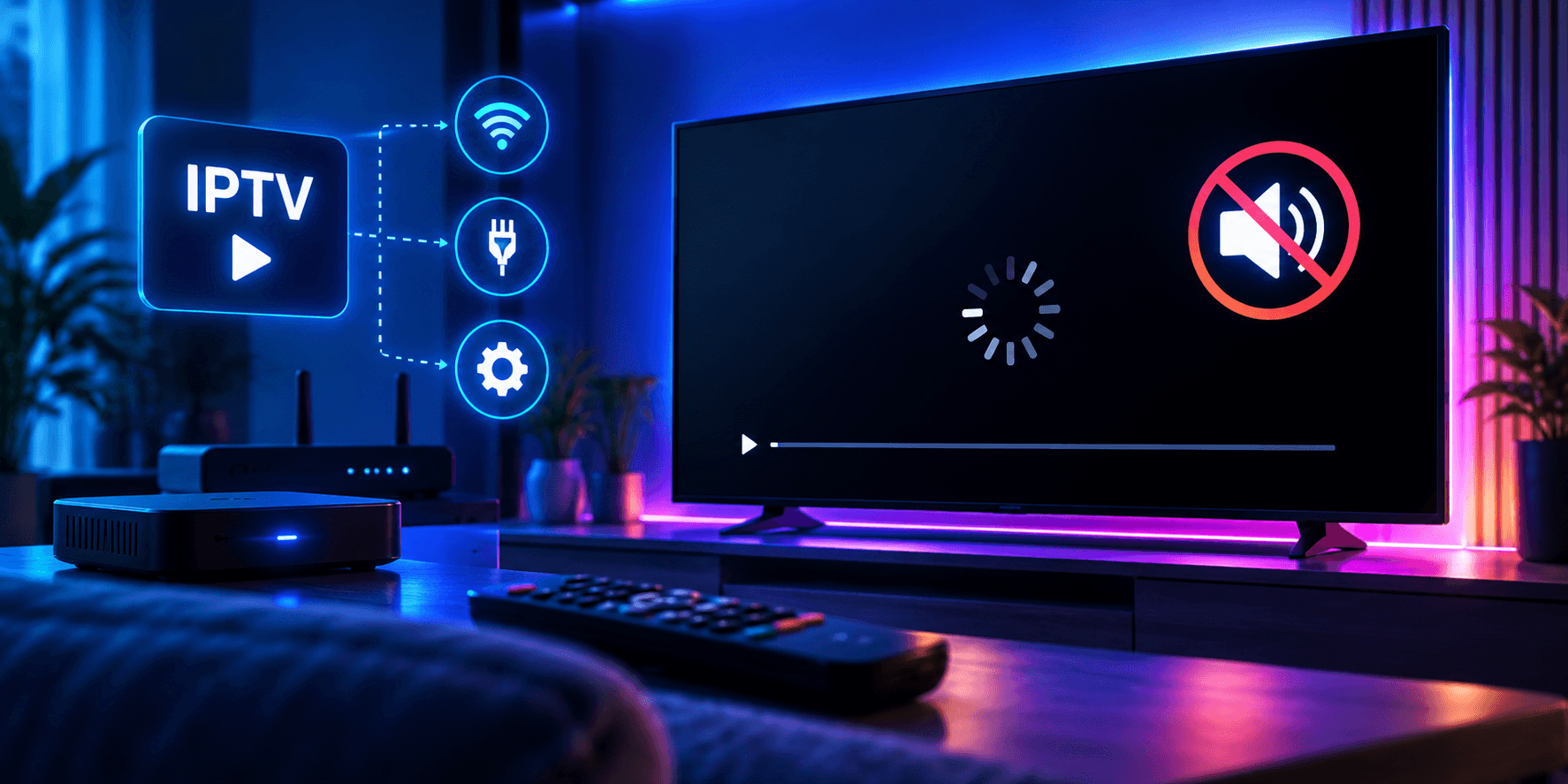
Few things are more frustrating than a channel that loads and then does nothing: a black screen, a picture with no sound, or audio that runs half a second ahead of the players’ lips. Unlike buffering, these problems usually have nothing to do with your internet speed. They come from how your player app, your TV or your soundbar handles the video and audio formats inside the stream.
This guide starts with a two-minute check to narrow down the cause, then goes through the fixes for each symptom in order, from the quickest to the most involved.
First, a two-minute check
Answer these three questions before you change any settings. Each one points to a different cause:
- Is it one channel or all of them? If only one channel stays black while others play, the problem is most likely that channel’s source. Note the channel name and the time and send it to support.
- Do films from the on-demand library play? If films play but live channels don’t, the issue is usually how your player handles live stream formats.
- Does the same channel play on another device, such as your phone? If it works there, the problem is the settings or the app on your TV, not the service.
If every channel and every film is black or silent on every device, the issue is more likely your login or your account. Our guide to IPTV login errors covers that.
Fixing a black screen
1. Wait a few seconds, then change channel and come back
Some channels take a few seconds to start, especially 4K and sports feeds. Give it ten seconds. If it stays black, switch to another channel and back again. That forces the player to reconnect to the stream from scratch.
2. Restart the app and clear its cache
A player that has been open for days can get stuck. Close it fully and reopen it. On a Fire TV Stick or Android TV box you can also clear the cache: Settings › Applications › Manage Installed Applications › your player › Clear cache. Avoid Clear data unless you are happy to log in again.
3. Switch between the hardware and software decoder
Most players decode video with your device’s video chip (the hardware decoder), which is faster and handles HD and 4K well. Occasionally a channel uses a format that chip struggles with, and the result is a black screen with sound. Switching to the software decoder for that channel often fixes it.
In TiviMate, the decoder option is in the playback settings; our TiviMate setup guide shows where. Switch back to the hardware decoder afterwards for everything else, because software decoding uses more processing power.
4. Change the player or the stream format
In IPTV Smarters Pro, open Settings and try the other built-in player, or choose VLC as an external player. You can also change the stream format from Default to HLS or MPEGTS and compare. One of these combinations usually plays a channel the default can’t. Our IPTV Smarters Pro setup guide explains each setting.
5. Check 4K and HDR channels on older TVs
A 4K or HDR channel can show black on a TV, stick or HDMI cable that doesn’t support it. Try the HD version of the same channel. If that plays, the 4K feed is the problem: use the HD version, or check that your stick is plugged into an HDMI port that supports 4K and HDR (often marked on the TV).
6. Update or reinstall the player
Older app versions can fail on newer stream formats. Install any available update. If problems continue, uninstall and set the app up again from scratch, following the Firestick installation guide or the guide for your device, so old settings don’t come along.
Fixing missing sound
A picture without sound almost always comes down to the audio format. Many channels carry surround sound (Dolby Digital, also called AC3), and some TVs, soundbars and apps don’t handle it correctly.
1. Check the obvious first
Make sure the TV and soundbar aren’t muted and that the volume is up on the right device. If you use a soundbar or receiver, check it is set to the correct input. Then try another channel: if only one channel is silent, report it to support.
2. Switch the audio output to stereo
This is the fix that works most often. On a Fire TV Stick, go to Settings › Display & Sounds › Audio and set Surround Sound to Stereo instead of Best Available. On Apple TV, go to Settings › Video and Audio › Audio Format and turn off Dolby options to test. On Android TV and Google TV boxes, look for Sound or Audio output in the settings and choose PCM or Stereo.
If sound comes back, the surround audio was the problem. You can keep stereo, or try the surround setting again after updating your soundbar or receiver.
3. Turn off audio passthrough in the player
Some players have an audio passthrough option that sends surround sound straight to your soundbar or receiver. If that equipment doesn’t support the format, you get silence. Turn passthrough off in the player’s audio settings so the app converts the sound itself.
4. Try a different audio track
Some channels and films offer more than one audio track, for example different languages or a stereo and a surround version. While the channel plays, open the player’s options and look for Audio or Audio track, then pick another one.
Fixing audio that is out of sync
If the sound runs ahead of or behind the picture on every channel, the delay usually comes from your TV’s picture processing or your soundbar, not the stream.
- Turn on your TV’s game mode or reduce motion smoothing for a test. Heavy picture processing delays the image while the sound plays immediately.
- Look for a lip-sync or AV sync setting on your soundbar or receiver and adjust it in small steps.
- Use the player’s own audio delay setting if it has one; VLC and several IPTV players do.
- Turn on frame rate matching on Fire TV or Apple TV. A mismatch between the channel’s frame rate and the TV’s can add judder and drift on some setups.
If only one channel is out of sync and the others are fine, the problem is that channel’s source. Send support the channel name and the time.
When to contact support
If you have worked through the steps for your symptom and the problem is still there, message our support team. Include the device and app you use, the channels affected, and whether films from the on-demand library play. With those details, support can usually tell straight away whether the cause is the channel source or a setting on your device.
If your channels play but keep freezing rather than staying black, that is a different problem. Our IPTV buffering guide works through those fixes.
Summary
A black screen usually means the player can’t decode the stream: change channel, restart the app, switch the decoder or player, and try the HD version of 4K channels. Missing sound usually means a surround audio format your setup can’t play: switch the output to stereo and turn off passthrough. Not a SofaIPTV customer yet? Try the 24-hour free trial and test your own device and sound system before you choose a plan.
Frequently asked questions
Why do I get sound but no picture on an IPTV channel?
Usually because the player can’t decode that channel’s video format. Switch between the hardware and software decoder, try another built-in player or VLC, or play the HD version instead of 4K.
Why is there no sound on IPTV with my soundbar?
Most often the channel carries surround audio that your soundbar or receiver can’t handle. Set your device’s audio output to Stereo or PCM and turn off audio passthrough in the player.
Why is only one channel black?
If other channels play normally, the problem is that channel’s source rather than your setup. Note the channel name and the time and send them to support.
How do I fix IPTV audio that is out of sync?
Reduce your TV’s picture processing or turn on game mode to test, adjust the lip-sync setting on your soundbar, or use the player’s audio delay setting if it has one.