You open your IPTV app, enter your details and get an error instead of your channel list. The good news is that login errors are almost always quick to fix, and the exact message on screen tells you where to look.
This guide explains what each common error means and how to fix it. It applies to TiviMate, IPTV Smarters Pro, IBO Player and most other players, whether you log in with Xtream Codes or an M3U link.
Before anything else: check the three details
Most login problems come from a small typing mistake. An Xtream Codes login has three parts, and each one has to match your welcome message exactly:
- Server URL: including http:// at the start and the port number after the colon, for example http://server-address:8080. Don’t add a slash at the end.
- Username: usually case-sensitive, so check capital letters.
- Password: also case-sensitive. Watch for letters that look alike, such as a capital I and a lower-case l, or the letter O and the number 0.
Copying the details from your welcome message on a phone and pasting them avoids most mistakes. Also check for a space at the start or end, which copying often adds. If you’re not sure which login type to use, our M3U vs Xtream Codes guide explains the difference.
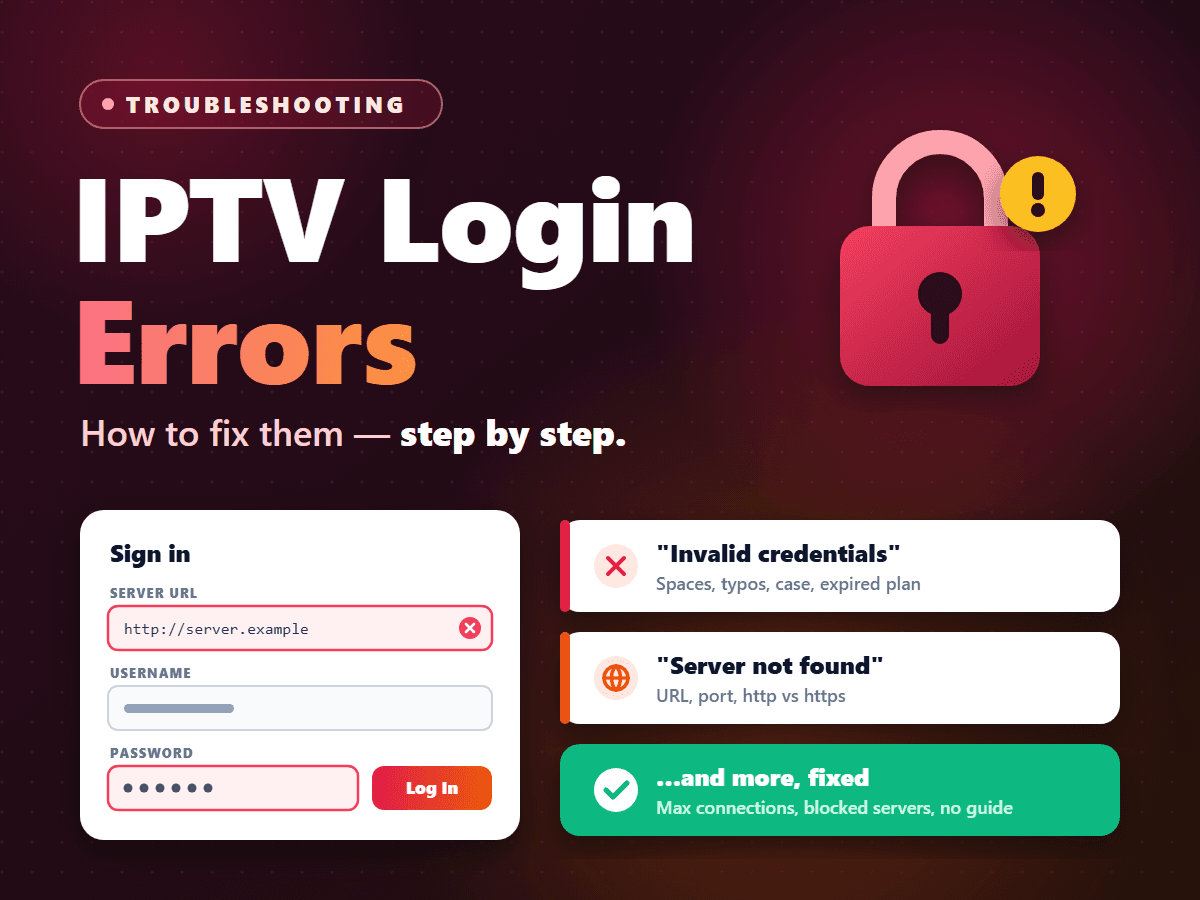
“Invalid credentials” or “Authorization failed”
The server is reachable but doesn’t accept the username or password. In order:
- Retype the username and password slowly, checking capital letters and look-alike characters.
- Make sure you are using the details for the right account. If you had a free trial and then bought a plan, your paid login may be different from the trial one.
- Check that the account is active. A new order can take a few minutes to activate; most are ready within 5 to 30 minutes.
“Server not found”, “Unable to connect” or “Network error”
The app can’t reach the server at all. That points to the server URL or your network:
- Check the server URL: it should start with http:// (not https:// unless your welcome message says so) and include the port number.
- Remove any slash or space at the end of the URL.
- Open another app on the same device, such as YouTube, to confirm it is online.
- Restart your router and the device.
- Try the same login on your phone using mobile data. If it works there but not at home, the issue is your home network or internet provider. Contact support for an alternative server address.
“Account expired” or “Subscription ended”
Your plan has reached its end date. Plans don’t renew automatically, so this is expected when a period finishes. Choose a plan on the pricing page and give support your existing username; the new period is added to the same account, so your login and app settings stay the same.
“Maximum connections reached” or “Too many connections”
Another device is already playing on your account, and your plan’s connection limit has been reached. A connection is one stream playing at a time, not one device.
- Stop playback on the other device, or close the app there completely.
- Wait about a minute: the server can take a short time to notice that a stream has ended.
- Look for a forgotten stream, such as a bedroom TV left on a channel.
- If several people regularly watch at once, a plan with more connections is the lasting fix. Our guide to how many IPTV connections you need helps you count.
Repeated connection errors when nobody else in your home is watching can mean your login details have been shared. Keep them private, and ask support to reset your password if you think they have leaked.
Logged in, but no channels appear
The login worked, but the lists are empty or stop loading:
- Give the first load a full minute. Large channel lists take time on older devices.
- Refresh or reload the playlist from the app’s settings, then restart the app.
- Delete the playlist or user profile and add it again from scratch.
- If you used an M3U link and films and series are missing, add the same account with Xtream Codes instead; it loads the on-demand library and the TV guide automatically.
Logged in, but the TV guide is empty
Channels play but show “No information”. With Xtream Codes, update the EPG from the app’s settings and wait a few minutes. With M3U, add the separate guide link from your welcome message. Our explainer on how the IPTV EPG works covers the causes in detail.
Device-specific tips
- Smart TV apps (Samsung and LG): many, such as IBO Player, are set up on the app’s website using your TV’s MAC address. After changing details on the website, restart the app on the TV. See our guide to IPTV apps for Samsung and LG TVs.
- Apple TV, iPhone and iPad: some Apple apps are strict about plain http:// server addresses. If a correct login is refused, try another player from our Apple TV and iPhone guide.
- Fire TV Stick: make sure the player is up to date, and clear its cache if it keeps failing after you have corrected the details.
Still can’t log in?
If you have checked every detail and the error is still there, contact our support team with a photo of the error message, the app and device you use, and your username (never send your password in a public place). Most login problems are sorted within minutes once support can see the exact message.
Summary
Most IPTV login errors come down to one of four things: a typing mistake in the server URL, username or password; an account that has expired or is still activating; another device using your connection; or a network problem between you and the server. Read the exact error message, apply the matching fix above, and you will usually be watching again in minutes. New to SofaIPTV? Start a 24-hour free trial and test the login on your own devices first.
Frequently asked questions
Why does my IPTV app say invalid credentials when my details are correct?
Check for capital letters, look-alike characters and spaces at the start or end. Also make sure you are not using an old trial login, and that a new account has finished activating.
What does “server not found” mean in an IPTV app?
The app can’t reach the server. Check that the URL starts with http:// and includes the port number, remove any trailing slash, and restart your router. If it works on mobile data but not at home, contact support.
How do I fix “maximum connections reached”?
Stop playback on the other device, wait about a minute and try again. If several people often watch at the same time, choose a plan with more connections.
Do I need to log in again after renewing?
Usually not. When you renew with your existing username, the new period is added to the same account, so your login and app settings stay the same.