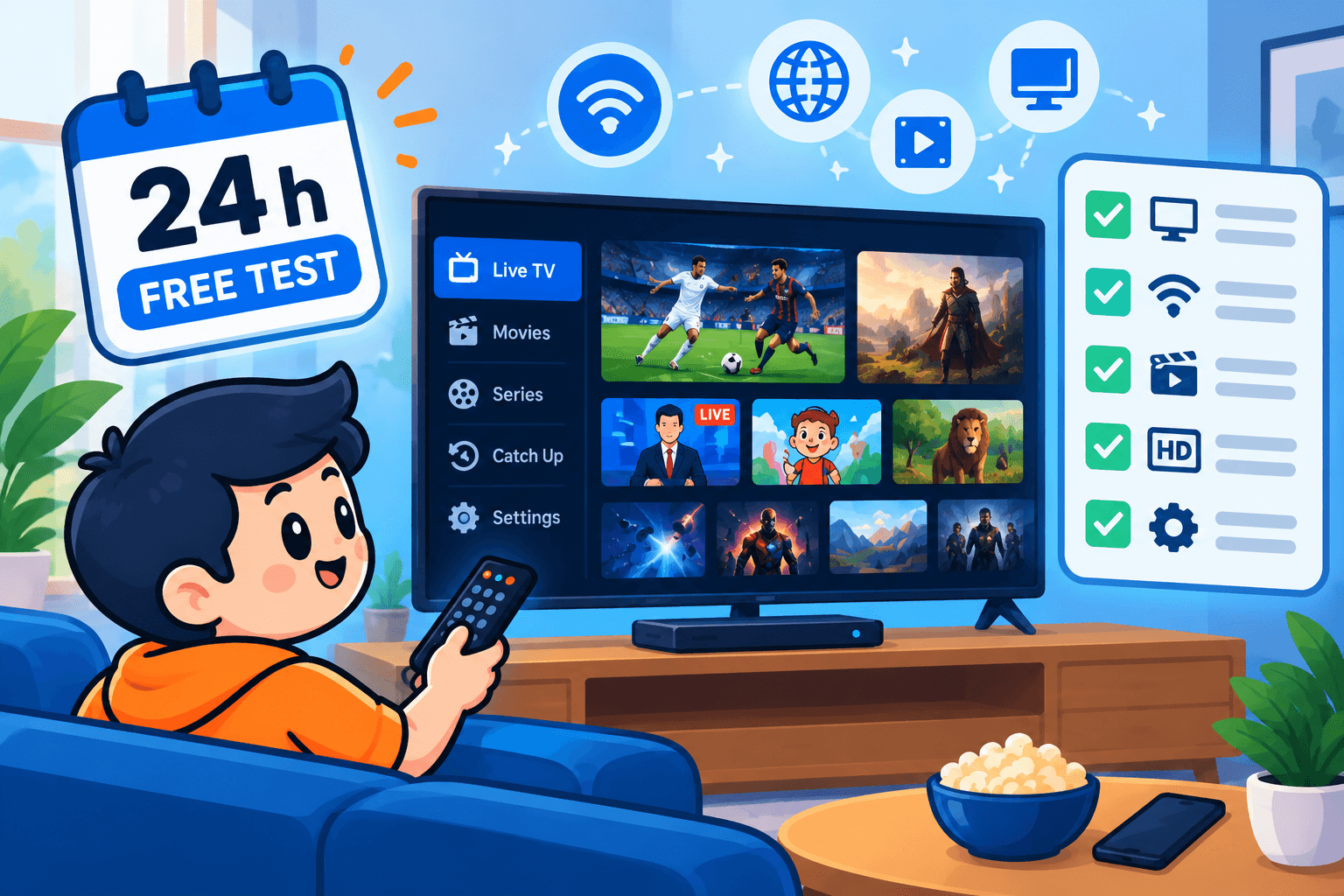
A free test is the only honest preview of an IPTV service. Adverts and channel counts tell you very little; a day of real viewing on your own broadband, your own TV and at your own busy hours tells you almost everything. It is why we offer a 24-hour trial, and why this checklist works whichever provider you are trying.
The usual mistake is testing at the wrong time. A few channels on a quiet weekday morning look fine, and the problems only show up during a packed Sunday afternoon of NFL or a midweek Champions League night. The plan below splits your 24 hours into four short sessions so you see the service at its best and its busiest.
Five questions your test must answer
- Stability: do live channels run for long stretches without freezing, above all in the evening?
- Picture: do HD, Full HD and 4K channels actually look sharp on your screen?
- Content: are the specific channels, leagues and shows you watch included and working?
- Usability: is the TV guide right, are channel changes quick, and does the app suit your device?
- Support: does the provider answer a real question quickly and clearly?
Headline channel counts and glossy branding matter far less than these five. Keep them in front of you and you will not be swayed by numbers that never affect your evenings.
Ten minutes of preparation
A little setup means you spend the trial testing rather than troubleshooting.
Measure your speed where you watch
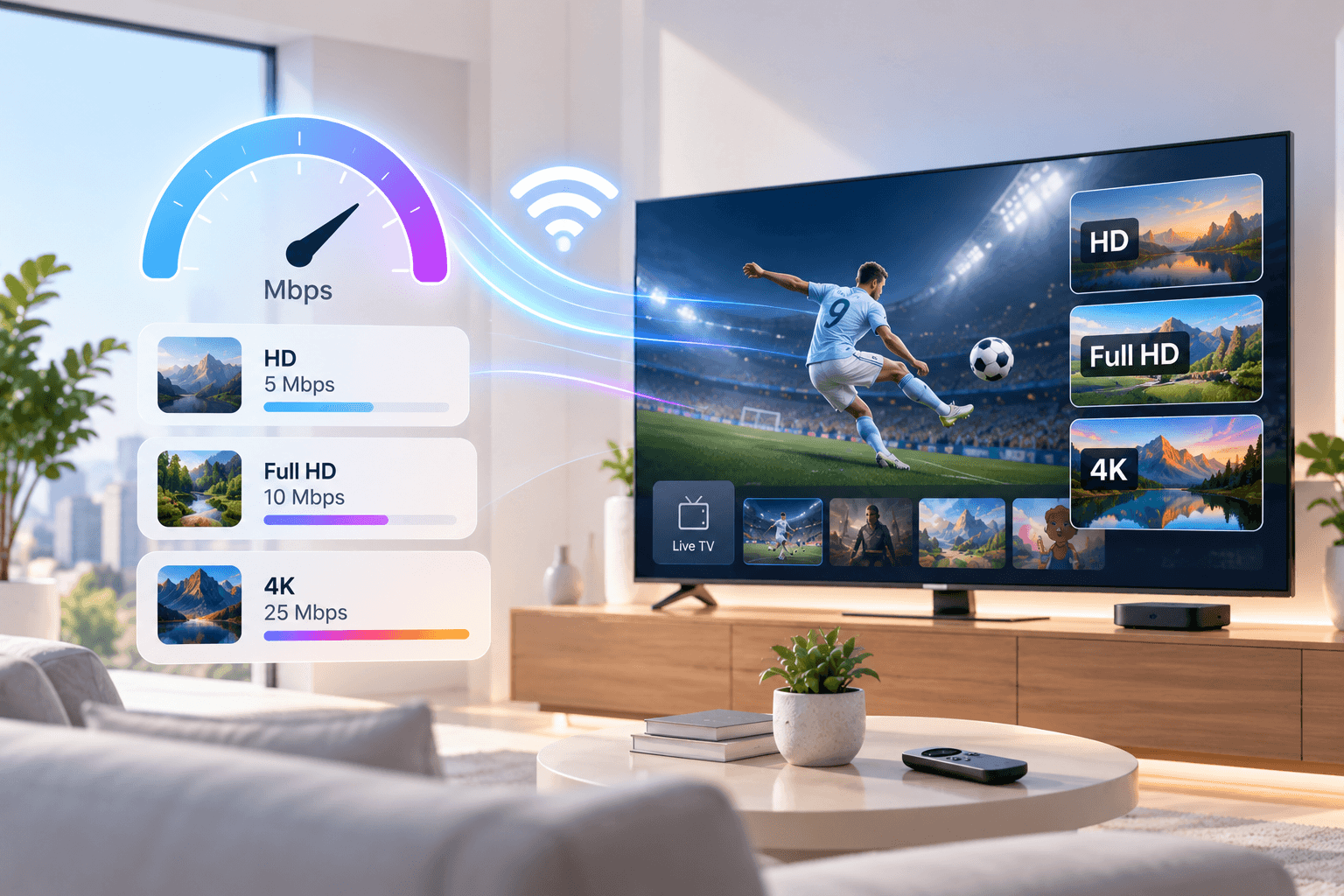
Run a speed test on the TV or stick itself with fast.com or Speedtest, not on your phone. Each stream needs around 5 Mbps for HD, 8–10 Mbps for Full HD and roughly 25 Mbps for 4K. If you are below that, a poor result may be your network rather than the service; our guide to internet speed for IPTV explains why.
List your must-have channels
Write down ten to fifteen channels and shows that matter in your home: local news for your city or region, the leagues you follow, the kids’ channel that gets asked for every morning. Skim the channel categories beforehand so you know where to look once the clock is running.
Set up the screen you use most
Test on your main TV. On a Fire TV Stick, follow the Firestick installation guide so a misconfigured app does not distort your results. On Samsung or LG, pick a solid player from our list of Smart TV IPTV apps. A good app cannot rescue a weak service, but a poor app can make a good one look bad.
The four-session plan
Four sessions of 20 to 30 minutes, spread across the day, tell you far more than one long sitting.
Session 1 (any time): setup and first look
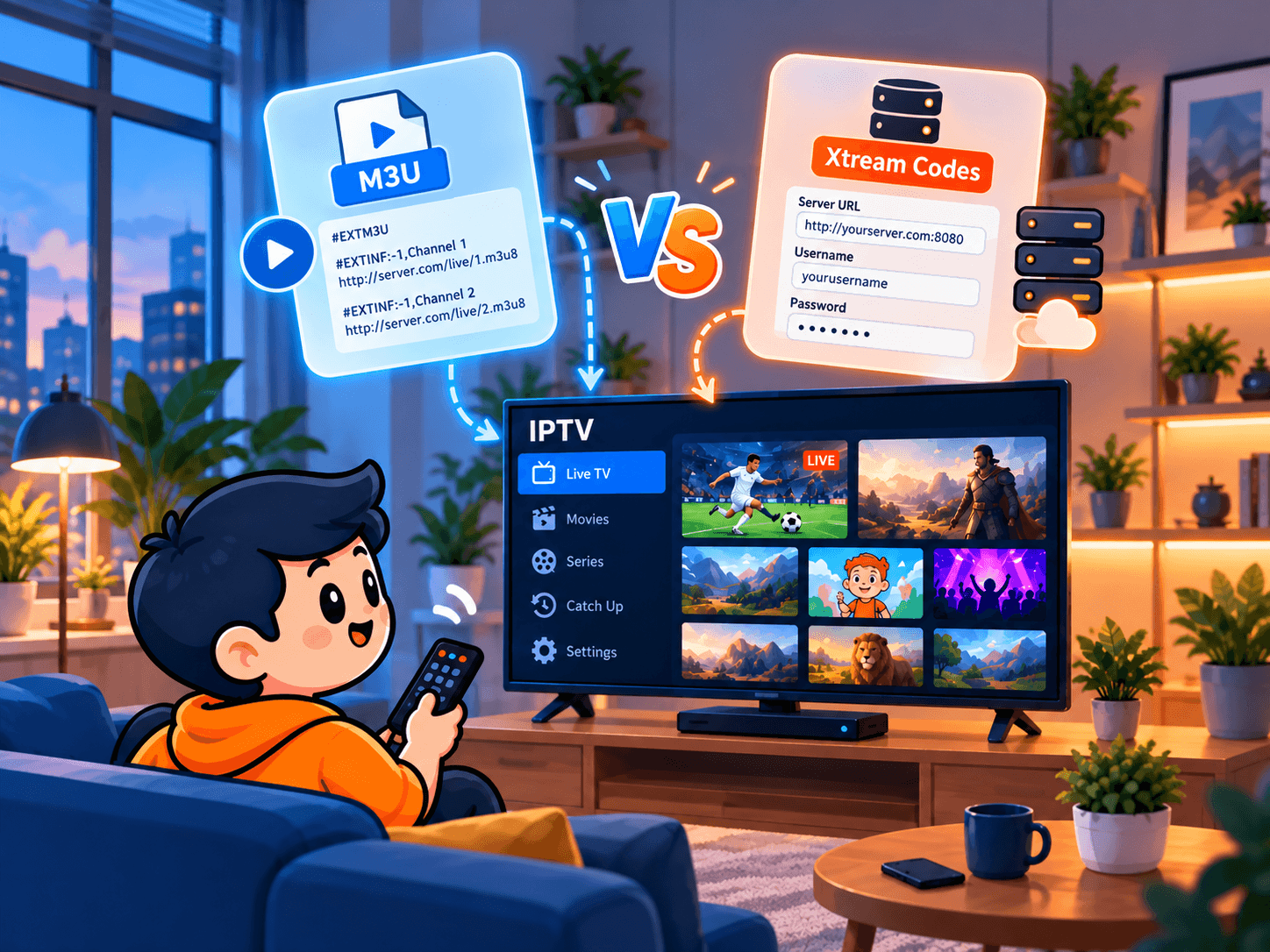
Time how long activation takes and how clear the instructions are. Once logged in, check that the full channel list loads, that categories make sense and that the TV guide fills in. If the guide stays blank, ask support for the right link; our explainer on what an EPG is in IPTV covers what to expect.
Session 2 (daytime): picture quality
Watch three channels you know well for five minutes each. Look for blocky patches in fast motion, dull colours and sound drifting out of sync. Compare a Full HD or 4K channel with its HD version; on a large TV the difference should be obvious. Start a couple of on-demand films too, since they are often served from different servers than live TV.
Session 3 (7–10 pm local time): peak-time stress test
This session matters most. Evenings are when home networks, internet providers and streaming servers are all under the most load. Watch live sport or a popular channel for at least 20 minutes and count the freezes.
One short pause in 20 minutes is acceptable. A freeze every few minutes is a warning sign. Before blaming the provider, rule out your own Wi-Fi with the IPTV buffering guide: a weak wireless signal is a surprisingly common culprit.
Session 4 (next morning): features and support
Play something from yesterday on catch-up, try search, save a few favourites and flick quickly between channels. Then send support a genuine question, such as which player suits your TV, and time the reply. How you are treated before paying is a good preview of how you will be treated after.
A simple scoring sheet
Score each area from 1 to 5 with one line of notes, so you can compare services later without relying on memory:
- Peak-time stability
- Picture quality on your main TV
- Coverage of your must-have channels
- TV guide accuracy and app experience
- Support speed and helpfulness
A service scoring 4 or 5 for stability and channel coverage is usually worth paying for, even if the app takes some getting used to. Weak stability rarely improves with a longer plan, so do not let a 12-month discount override what you saw.
Warning signs during a trial
Some issues are minor. These suggest the service will let you down over time:
- Many dead or duplicate channels in the categories you care about.
- Regular peak-time buffering even on a wired, fast connection.
- A TV guide that is empty, hours out or missing for most channels.
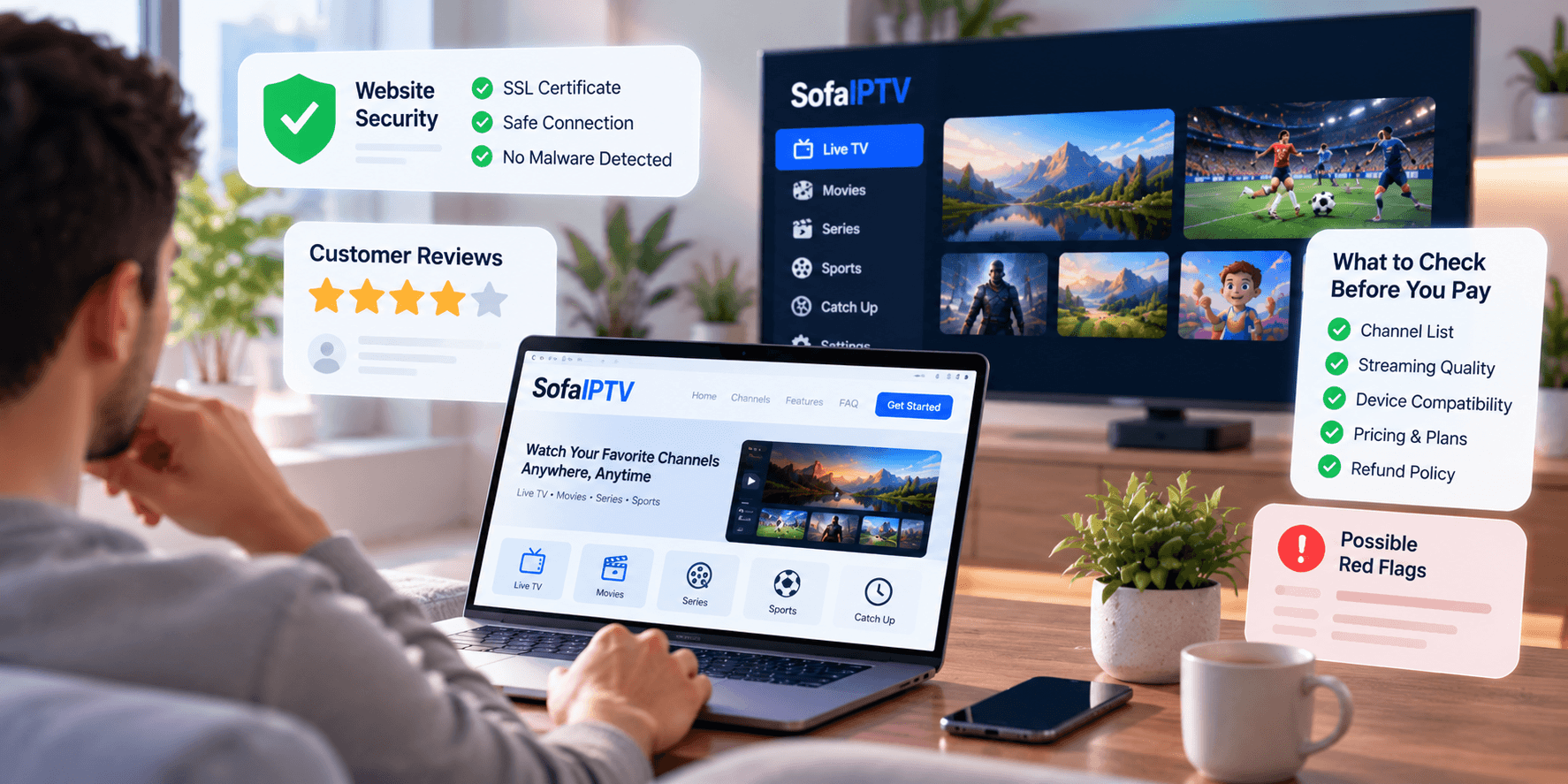
- No refund policy, terms or contact details on the website.
- Pressure to buy a long plan before the trial ends.
- Support that goes silent once you ask a technical question.
One item deserves a direct question to the provider. Two or more is a good reason to keep looking.
Comparing more than one provider
Use the same checklist, the same device, the same connection and the same times of day for each service. Otherwise you are comparing a quiet Tuesday with a Saturday derby, which tells you nothing.
Check how many screens each plan allows at once. If two people in your home watch at the same time, read how multiple connections work so the test matches real use.
Once quality is settled, compare prices fairly: divide each plan’s price by its months to get a true monthly cost, and check what is included. Our pricing page shows the monthly figure for every plan length.
After the trial
If the service passed, pick a plan length that matches your confidence. Shorter plans cost a bit more per month but keep you flexible; longer ones are better value once you are sure. Ask whether your trial login can become your paid account so you keep favourites and settings.
If it failed, tell the provider exactly what went wrong. Sometimes a different server or player solves it at once, and a good provider may extend the test. If not, move on: that is what a free test is for.
Summary
Prepare your channel list, test at peak time, score honestly and ask support at least one real question, and a single day will tell you whether a service deserves your money. Ready to try it? Start your 24-hour free trial and see how SofaIPTV does on your own TV.
Frequently asked questions
How long should an IPTV free test be?
Twenty-four hours is enough if you test at different times, including at least one evening session. Testing at peak time matters more than trial length.
Should a free IPTV test need a credit card?
Usually not. Reputable providers, SofaIPTV included, can activate a trial with just your contact details. Be wary of a free test that asks for card details and quietly turns into a paid plan.
My trial buffers but my internet is fast. Why?
Speed is only part of it. Wi-Fi interference, an overloaded stick, slow DNS or throttling by your internet provider can all cause buffering on a fast plan. Testing with an Ethernet cable is the quickest way to see whether the problem is local.
Can I test on more than one device?
Yes, but trials usually allow one connection at a time. Test devices one after another, or ask for a multi-connection trial if your household watches on several screens.