This is the hands-on walkthrough for getting SofaIPTV running on a Windows PC or a Mac, from your first login to watching live channels full screen. It takes about ten minutes and works on most laptops and desktops from the last few years. If you want to compare every player app first, our guide to the best IPTV apps for PC and Mac covers the options in detail.
Before you start: what you need
- A Windows 10 or 11 PC, or a Mac on a recent version of macOS.
- Your SofaIPTV login. Order a plan or request a 24-hour free trial; the details arrive on WhatsApp and email, usually within minutes.
- An internet connection of around 10 Mbps for Full HD. On a desktop, an Ethernet cable is the most stable option.
Step 1: Find your login details
Open your welcome message. It contains an Xtream Codes login with three parts, plus an M3U link as a backup:
- Server URL, beginning with http:// and usually ending in a port number such as :8080.
- Username.
- Password.
Keep the message open on the same computer: copying and pasting avoids almost every login mistake.
Step 2: Install a player app
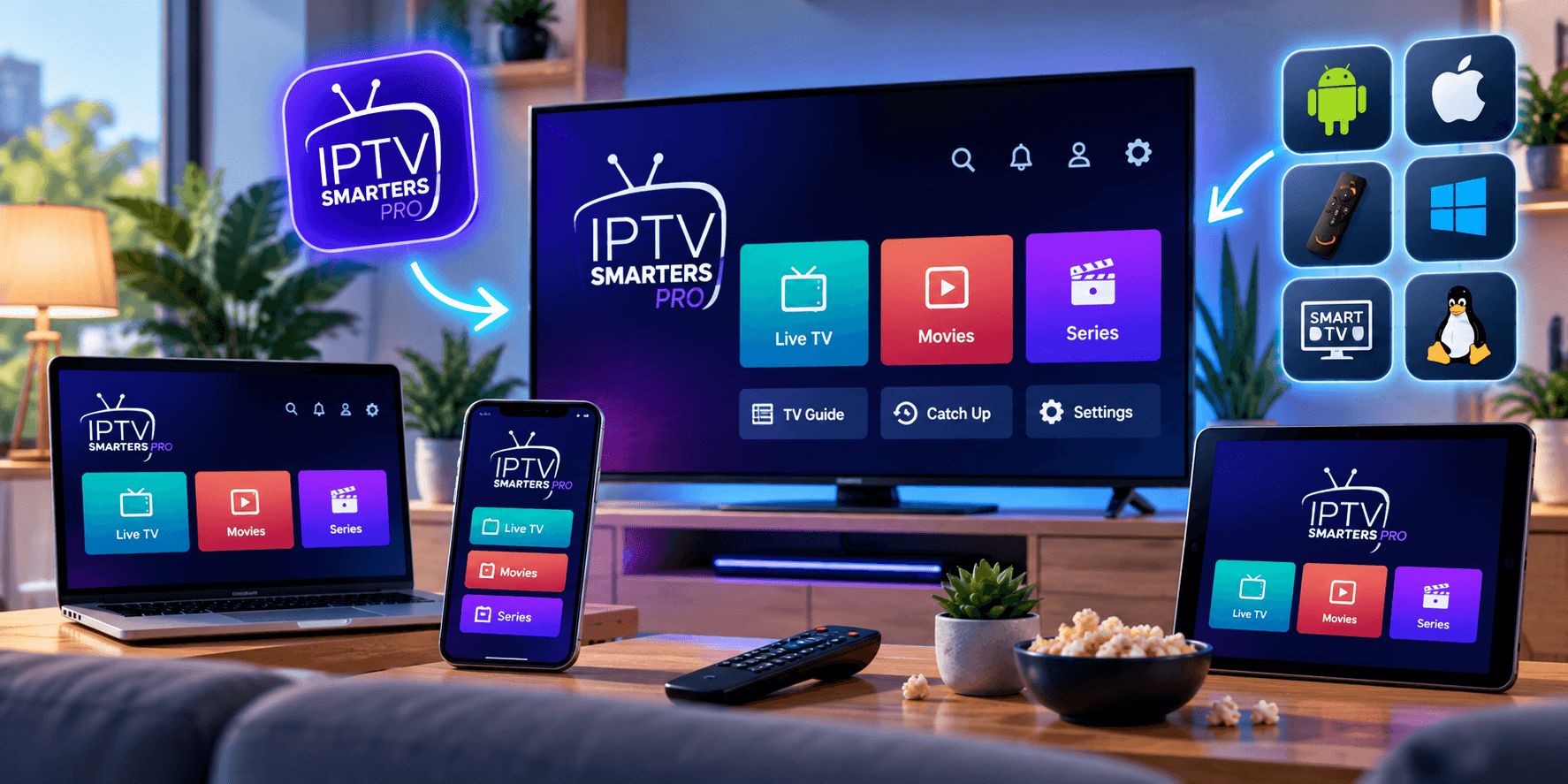
- On Windows: download IPTV Smarters Pro for Windows from the developer’s official website and run the installer. If Windows SmartScreen asks, check the publisher name before allowing it.
- On a Mac: install IPTVX from the Mac App Store, or the macOS edition of IPTV Smarters Pro from the developer’s official website. If macOS blocks the first launch, approve it under System Settings › Privacy & Security.
- For a 30-second test on either: VLC from videolan.org can open your M3U link directly (see Step 5).
Step 3: Sign in with Xtream Codes
- Open the player and choose to add a user or playlist.
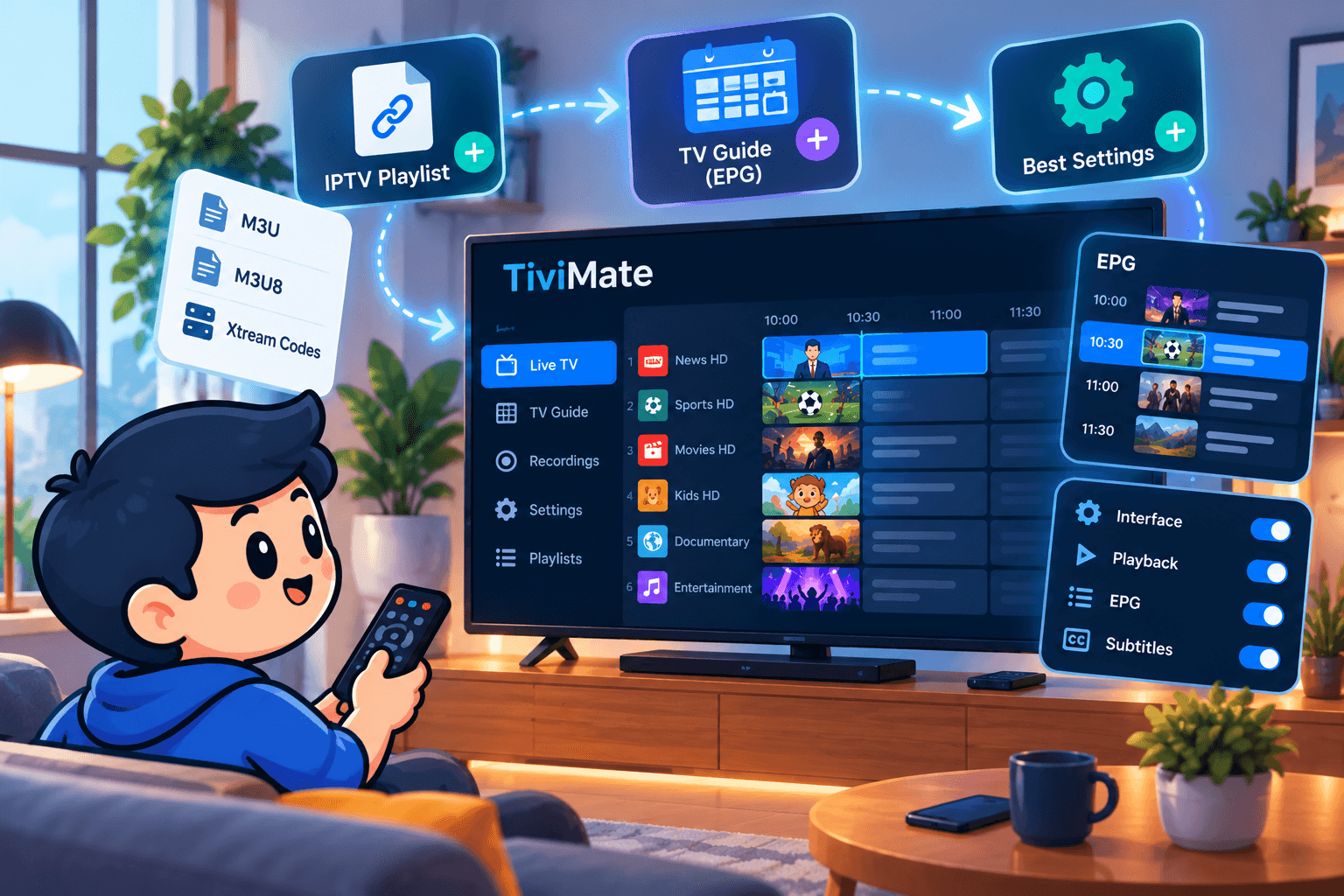
- Select Xtream Codes (sometimes Xtream Codes API).
- Name the profile SofaIPTV.
- Paste the server URL, username and password from your welcome message.
- Save and wait about a minute while live TV, films, series and the TV guide load.
If the app shows an error, the most common causes are a missing http:// or port number, or an extra space at the end. Our guide to IPTV login errors explains each message.
Step 4: Set it up for comfortable viewing
- Favourites: right-click or long-press a channel and add it to Favourites, so your everyday channels sit in one short list.
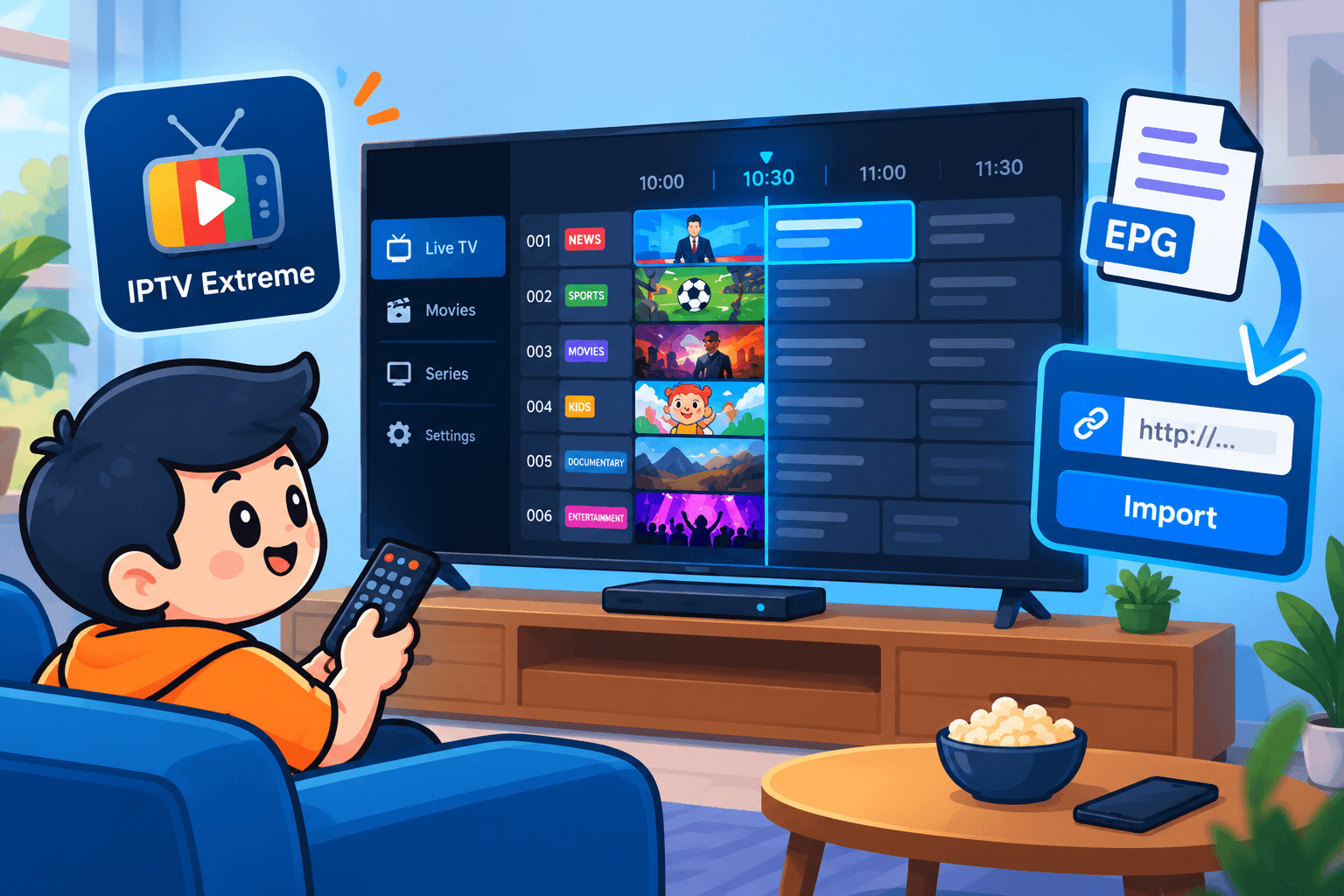
- TV guide: open the EPG view to see what is on now and next. If it is empty, refresh the guide in the player’s settings.
- Full screen: double-click the video. Press Esc to leave full screen.
- Second monitor: drag the player window to your second screen, then go full screen there and keep working on the first.
- Sleep settings: stop the laptop sleeping during long matches (Windows: Settings › System › Power; Mac: System Settings › Lock Screen and Battery).
Step 5: Quick test in VLC (optional)
- Open VLC.
- Windows: Media › Open Network Stream. Mac: File › Open Network.
- Paste the M3U link from your welcome message and press Play.
VLC is ideal for checking that your login and a channel work, but it has no full TV guide, so use a dedicated player for everyday viewing.
Putting it on your TV
An HDMI cable from your laptop to the TV is the simplest and most reliable option: choose the TV as a display and go full screen. Wireless casting works too (Windows can cast to many smart TVs, and Macs can use AirPlay), but quality then depends on your Wi-Fi. For everyday TV viewing, an app on the TV itself is smoother; see our Android TV and Google TV guide.
Laptop and computer tips for a smoother picture
- Plug a laptop into power: battery-saving modes can lower video performance.
- Close heavy browser tabs, downloads and cloud sync while you watch.
- Update your graphics drivers on Windows, and macOS on a Mac.
- If one channel stutters, try the HD version instead of 4K, then see our buffering fixes.
How many screens does your plan cover?
You can install SofaIPTV on every computer in the house. Your plan limits how many play at the same time, so a laptop and a TV watching together need two connections. If you need another screen later, support can upgrade your account and your login stays the same; compare options on our pricing page.
Summary
Get your login, install IPTV Smarters Pro or IPTVX, sign in with Xtream Codes, add your favourites, and use HDMI when you want the big screen: that is SofaIPTV on Windows or Mac in about ten minutes. Stuck on a step? Message our support team with a screenshot and we will help.
Frequently asked questions
Does SofaIPTV work on Windows 11?
Yes. Install a Windows IPTV player such as IPTV Smarters Pro, then sign in with the Xtream Codes details from your welcome message.
Can I watch SofaIPTV on a MacBook?
Yes. Use IPTVX from the Mac App Store or the macOS edition of IPTV Smarters Pro, and sign in with your Xtream Codes login.
Can I test SofaIPTV on my computer before paying?
Yes. Request the 24-hour free trial, which needs no card, and follow the steps above with the trial login.
Does watching on my laptop use one of my connections?
Yes, while it is playing. Count the laptop when you work out how many screens watch at the same time.