Watching IPTV on a PC or Mac is one of the easiest setups there is: no sticks, no sideloading, and a big, sharp screen. Whether you want a second screen for sport, a way to watch in the office or study, or a quick way to test SofaIPTV before setting up the TV, a computer gets you watching in a few minutes.
This guide covers the best IPTV players for Windows and macOS, how to log in, how to use VLC for a quick test, how to get the picture onto a TV, and fixes for the problems people run into most.
What you need
- A Windows PC or a Mac with a recent operating system.
- Your login details: an Xtream Codes server URL, username and password, or an M3U link, from your welcome message or free trial.
- A steady connection: about 10 Mbps per Full HD stream. An Ethernet cable is best on desktops.
The best IPTV players for Windows and Mac
A dedicated IPTV player gives you a TV guide, catch-up, favourites and separate sections for live TV, films and series. These are the most common choices:
- IPTV Smarters Pro (Windows and macOS): the same layout as the phone and TV apps, with an Xtream Codes login. Download it only from the developer’s official website. Our IPTV Smarters Pro setup guide covers the steps.
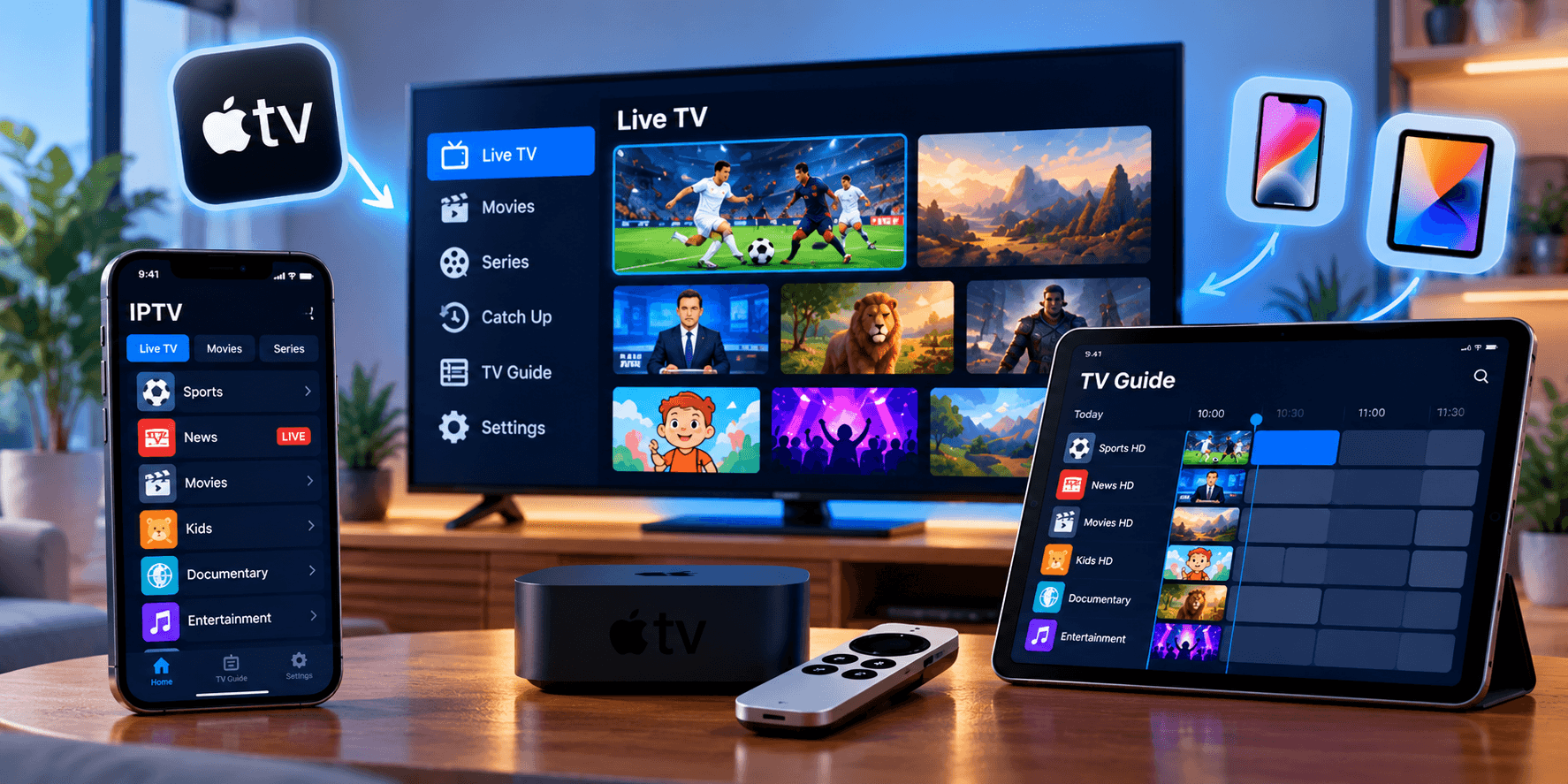
- IPTVX (Mac): a polished Apple player that syncs playlists and favourites with your iPhone, iPad and Apple TV through iCloud. See our Apple devices guide.
- VLC (Windows, macOS and Linux): a free, trusted media player that can open an M3U link. It is ideal for a quick test, but it has no proper TV guide.
App names and availability change, so check the developer before installing and avoid look-alike apps from unknown sites.
How to set up IPTV on a PC or Mac with Xtream Codes
In IPTV Smarters Pro or a similar player:
- Install the player from the official website (or the Mac App Store for Mac apps) and open it.
- Choose to add a user or playlist, then select Xtream Codes.
- Paste your server URL, including http:// and the port number, then your username and password.
- Save and wait a minute while live TV, films, series and the TV guide load.
- Add your favourite channels so they are one click away.
Pasting the details from your welcome message avoids typing mistakes, which is one of the advantages of setting up on a computer. If the app shows an error, see IPTV login errors and how to fix them.
How to watch IPTV in VLC (quick test)
- Install VLC from videolan.org.
- Open VLC and choose Media › Open Network Stream on Windows, or File › Open Network on a Mac.
- Paste your M3U link and select Play.
- Open the playlist view to browse channels; VLC shows the channel list but not a full TV guide.
VLC is great for checking that your login works and that a channel plays. For everyday viewing, a dedicated player with a guide is much easier. Our M3U vs Xtream Codes guide explains why Xtream logins load more.
Can I watch IPTV in a web browser?
Some players have web versions, but most IPTV streams play more reliably in an installed app. Browsers can struggle with some live stream formats and with long viewing sessions, so we recommend an installed player on computers.
Getting the picture onto your TV
- HDMI cable: the most reliable option. Connect the laptop to the TV and choose the TV as a display.
- Screen casting: Windows can cast to many smart TVs, and Macs can use AirPlay to an Apple TV or AirPlay-compatible TV. Quality depends on your Wi-Fi.
- For regular TV viewing, an app on the TV itself is smoother. See our guides for Android TV and Google TV and Fire TV Stick.
Fixing common problems on a computer
- Channel won’t play: try another player or VLC to see whether the issue is the app or the channel.
- Black screen or no sound: update the player and your graphics drivers, then see our guide to fixing a black screen or no sound.
- Buffering: use Ethernet, close heavy downloads and browser tabs, and work through our IPTV buffering guide.
- Security warning on install: only install from the developer’s official site or app store, and never disable your antivirus to install a player.
How many computers can I use?
You can install your subscription on as many devices as you like. What your plan limits is how many play at the same time, so a laptop and a TV watching at once need two connections. Our guide to how many IPTV connections you need explains it.
Summary
To watch IPTV on a PC or Mac, install a dedicated player such as IPTV Smarters Pro or IPTVX, log in with Xtream Codes, and use VLC for a quick test. Connect with a cable for the smoothest picture, and use HDMI to put it on a TV. Want to try it now? Start a 24-hour free trial of SofaIPTV on your computer in minutes.
Frequently asked questions
What is the best IPTV app for Windows?
IPTV Smarters Pro is the most common choice, with a TV guide and an Xtream Codes login. VLC works for a quick test with an M3U link.
Can I watch IPTV on a Mac?
Yes. Players such as IPTVX and IPTV Smarters Pro run on macOS, and VLC can open an M3U link for a quick test.
Can I watch IPTV in VLC?
Yes. Open Media › Open Network Stream (or File › Open Network on Mac), paste your M3U link and press Play. VLC doesn’t show a full TV guide.
Does watching on a computer use a connection?
Yes. Any device playing a stream uses one connection while it plays, so count your computer when choosing how many screens you need.