A VPN is one of the most common things people add to an IPTV setup, and one of the most misunderstood. It is not required to watch SofaIPTV, and on many connections it changes nothing. On others, it is the one thing that stops buffering every evening. This guide explains how to tell which group you are in, then gives the settings that matter most when you do use one. If your streams are freezing, start with our IPTV buffering guide: a VPN is fix number 12 for a reason.
What a VPN actually does to an IPTV stream
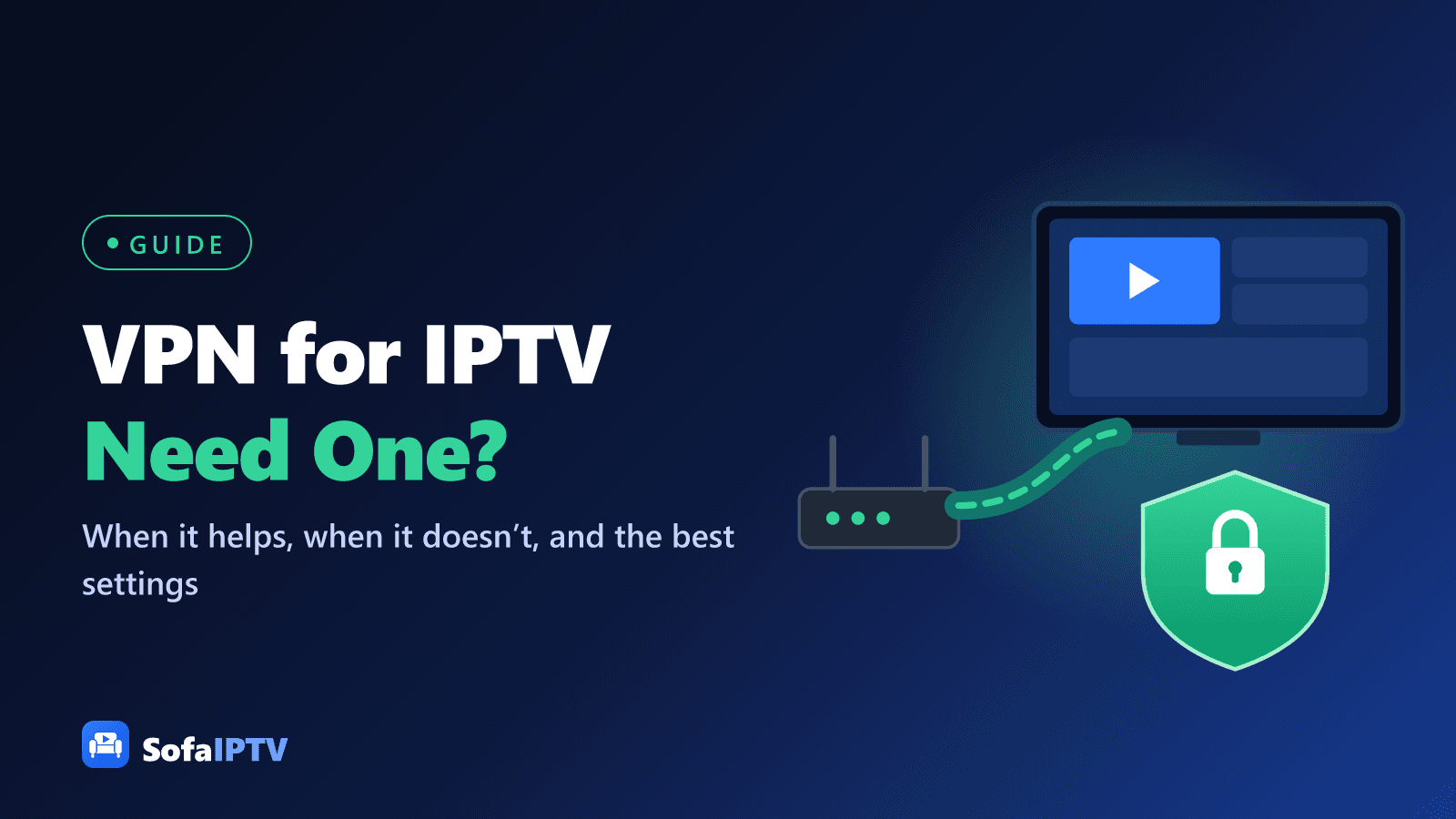
A VPN (virtual private network) wraps everything your device sends and receives in an encrypted tunnel to a VPN server, and your traffic leaves the internet from there. Your internet provider can still see how much data you use, but not what type it is or where it is going.
That has two effects on IPTV. The good one: a provider that slows down video traffic can no longer pick it out. The cost: every stream takes a slightly longer route and the encryption adds a little overhead, so a VPN can never make a connection faster than it really is. It can only remove a slowdown that someone else was adding.
When you need a VPN for IPTV
Your provider throttles video at busy times
This is the main reason. The pattern is easy to spot: streams are fine in the morning and freeze every evening, while an ordinary speed test still looks normal. Some internet providers manage busy periods by slowing particular kinds of traffic, and live video is an easy target. A VPN hides the traffic type, and if throttling was the cause, the buffering stops.
Your network blocks or filters streaming
Office, school, hotel and some public networks filter streaming or block the ports that players use. A VPN usually gets around this, provided you are allowed to use one on that network. Some home providers also apply filtering by default; a VPN, or changing the DNS server on your device, can show whether that is what you are running into.
You watch on public Wi-Fi
Hotel, airport and café Wi-Fi is shared with strangers. A VPN encrypts your traffic, including your player login, so nobody else on the network can read it. Turn it on before you open the player app when you are away from home.
You want more privacy from your internet provider
Some people simply prefer that their provider does not log which services they use. That is a reasonable personal choice, and it is all a VPN is needed for in that case.
When a VPN won’t help (and can make things worse)
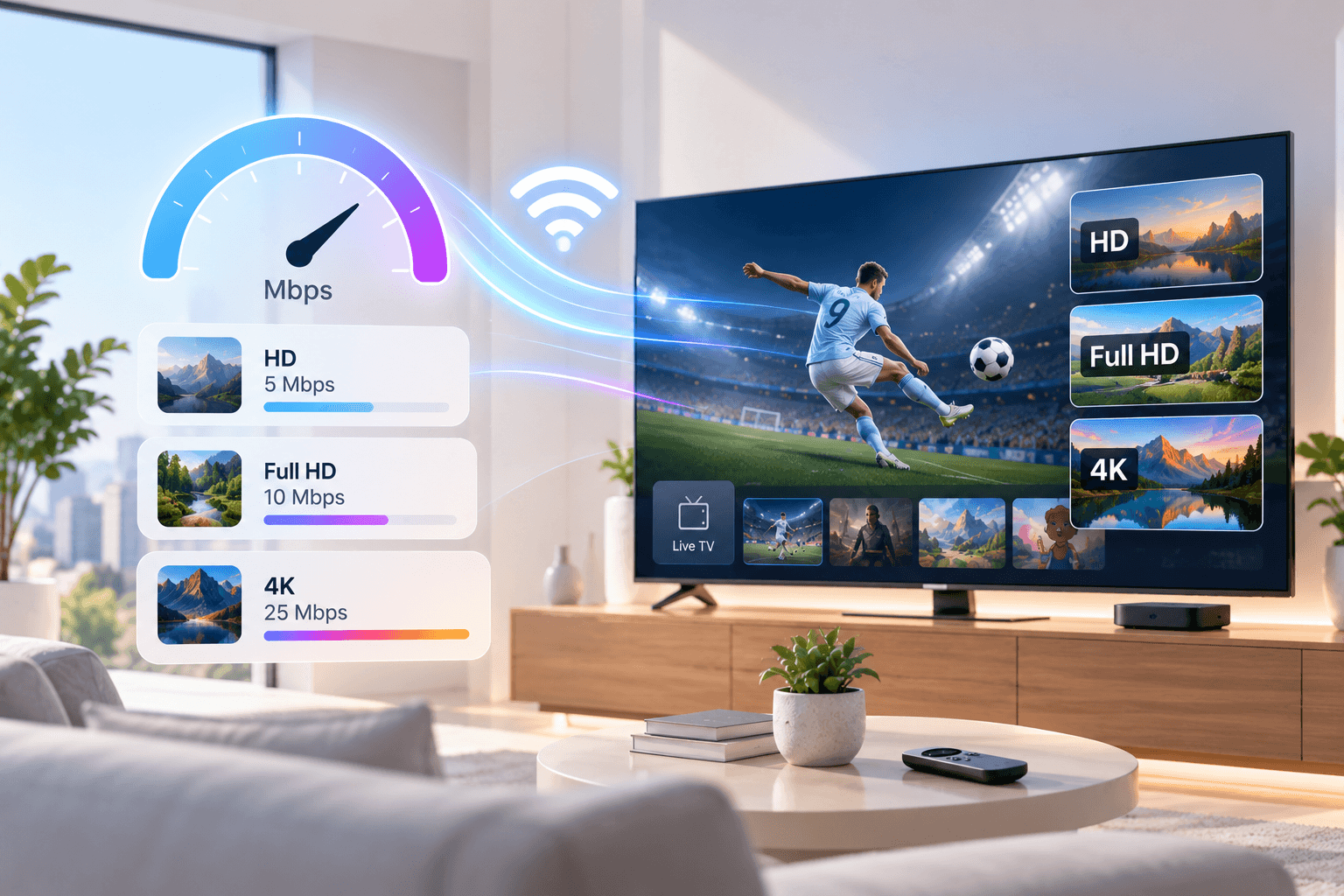
- Your connection is simply too slow. If you get less than about 10 Mbps at the TV for a Full HD stream, a VPN only adds overhead. Our guide to internet speed for IPTV explains what you need.
- The problem is your Wi-Fi. A weak signal at the TV causes freezing that no VPN can fix; an Ethernet cable or a 5 GHz connection will.
- Your streaming device is struggling. Entry-level sticks have to encrypt and decrypt every packet, and some cannot do that at 4K bitrates. If the picture got worse after adding a VPN, this is often why.
- Only one channel is affected. That points to the channel or the source, not your connection; tell support which channel and when.
How to test whether a VPN helps you
Don’t guess: compare. Many VPN services offer a free trial or a money-back period, which is long enough for this test.
- Pick a channel and a busy time, ideally between 7 and 10 pm, when the buffering usually happens.
- Watch for 20 minutes without the VPN and note every freeze.
- The next evening, at the same time, connect to a nearby VPN server and watch the same channel for 20 minutes.
- Run a speed test on the TV device both times, with and without the VPN.
- Keep the VPN only if the difference is clear. If it isn’t, your buffering has another cause; see the buffering guide.
Best VPN settings for IPTV
Once you have decided to use one, these settings make the biggest difference to picture quality and stability.
Choose the fastest protocol
The protocol is how the tunnel is built. WireGuard, or a VPN’s own protocol based on it, is usually the fastest and lightest choice for streaming, which matters on a stick with a modest processor. If it is not available, try OpenVPN over UDP, or IKEv2 on Apple devices. Avoid OpenVPN over TCP for live TV: it is the most reliable on restrictive networks but adds the most delay.
Pick a nearby server
For a stable stream, the closest server to you is almost always best: same country, and the nearest city if the app lets you choose. A server on another continent adds delay and lowers the speed you can reach. If the nearest server is crowded in the evening, try the next nearest one.
Use split tunnelling
Split tunnelling lets you choose which apps use the VPN. On Android TV, Google TV and Fire TV, many VPN apps offer it. Send only your IPTV player through the VPN and leave everything else on your normal connection, or the other way round. It keeps the rest of the device fast and makes it easy to compare with and without.
Set it to connect automatically
Turn on the option to connect when the device starts, so the VPN is already running before you open the player. Otherwise it is easy to start a match on the normal connection and wonder why buffering came back.
Think about the kill switch
A kill switch cuts the internet if the VPN drops, so nothing ever leaves the tunnel. That is useful for privacy on public Wi-Fi, but at home it also means the stream stops whenever the VPN reconnects. For a living-room TV, many people leave it off and rely on auto-reconnect instead.
Check ad and tracker blocking
Many VPN apps include an ad or malware blocker that filters web addresses. It can sometimes block the addresses a player uses for the TV guide or channel logos. If the guide stops loading after you install a VPN, turn that feature off and refresh the guide. Our explainer on how the IPTV EPG works shows how to reload it.
How to set up a VPN on each device
Fire TV Stick and Fire TV
Most large VPN services have an app in the Amazon Appstore. Search for it from the Fire TV home screen, install, sign in, choose a nearby server and turn on auto-connect. Then open your player as usual. New to Fire TV? Our Firestick installation guide covers the player side.
Android TV, Google TV, phones and tablets
Install the VPN app from the Google Play Store, sign in and connect. Android also has an Always-on VPN option in the network settings on many devices. Our Android TV and Google TV guide covers the rest of the setup.
Apple TV, iPhone and iPad
Apple TV supports VPN apps from tvOS 17 onwards, and many services now offer one in the App Store. On iPhone and iPad, install the VPN app and allow it to add a VPN configuration when asked. See our Apple TV, iPhone and iPad guide for the best players.
Samsung and LG smart TVs
Samsung (Tizen) and LG (webOS) TVs generally can’t run VPN apps. You have two options: run the VPN on your router so every device in the home uses it, or plug in a streaming stick that supports a VPN app. The stick is usually simpler and lets the rest of the household stay on the normal connection. Our guide to IPTV apps for Samsung and LG TVs explains the TV side.
On the router
A VPN on the router covers every device, including consoles and smart TVs, but it also slows every device to the speed the router can encrypt at, and many standard routers struggle. If you go this way, choose a router that supports WireGuard and check its VPN throughput before buying.
Free VPNs: worth it for IPTV?
Usually not. Free VPNs tend to have data limits that a single evening of HD streaming can use up, crowded servers that slow down at exactly the time you watch, and fewer server locations. Some also fund themselves by collecting data, which defeats the point. A paid service with a trial or money-back period lets you run the test above properly.
Is it legal to use a VPN with IPTV?
Using a VPN is legal in the US, Canada and most of Europe, and millions of people use one every day. A few countries restrict them, so check the rules if you travel. A VPN changes how your traffic travels, not what you are allowed to watch: the rules on content and services are the same with or without one. Our article on what to check before paying for IPTV covers the questions to ask any provider.
Summary
You don’t need a VPN for IPTV, but if your streams freeze every evening while speed tests look fine, a VPN is worth a test. Use WireGuard, a nearby server and split tunnelling, and compare with and without it at the same time of day. If it doesn’t help, the cause is elsewhere; our buffering guide goes through the rest. Want to test it all on your own connection? Start a 24-hour free trial of SofaIPTV.
Frequently asked questions
Do I need a VPN for IPTV?
No. SofaIPTV works without one. A VPN helps mainly when your internet provider slows down video at busy times, on networks that block streaming, or on public Wi-Fi.
Does a VPN slow down IPTV?
Slightly, because traffic takes a longer route and is encrypted. If your provider was throttling video, though, the stream can be smoother overall. Use a nearby server and the WireGuard protocol to keep the overhead low.
Which VPN protocol is best for IPTV?
WireGuard, or a protocol based on it, is usually fastest. OpenVPN over UDP and IKEv2 are good alternatives. Avoid OpenVPN over TCP for live TV.
Can I use a VPN on a Samsung or LG TV?
Not directly in most cases. Run the VPN on your router, or plug in a streaming stick that supports VPN apps.
Which VPN server should I connect to?
The closest one to you, normally in your own country. Distant servers add delay and lower your speed.